<?xml version="1.0" encoding="utf-8"?><feed xmlns="http://www.w3.org/2005/Atom" ><generator uri="https://jekyllrb.com/" version="3.10.0">Jekyll</generator><link href="https://koenreus.com/feed.xml" rel="self" type="application/atom+xml" /><link href="https://koenreus.com/" rel="alternate" type="text/html" /><updated>2025-11-17T15:05:17+00:00</updated><id>https://koenreus.com/feed.xml</id><title type="html">Koen’s Blog</title><subtitle>Full-stack developer working on some WordPress plugins</subtitle><author><name>Koen Reus</name><email>koen+website@koenreus.com</email></author><entry><title type="html">Local WP MySQL connection fix (after update)</title><link href="https://koenreus.com/wordpress/local-by-flywheel-mysql-fix/" rel="alternate" type="text/html" title="Local WP MySQL connection fix (after update)" /><published>2025-11-17T13:48:48+00:00</published><updated>2025-11-17T13:48:48+00:00</updated><id>https://koenreus.com/wordpress/local-by-flywheel-mysql-fix</id><content type="html" xml:base="https://koenreus.com/wordpress/local-by-flywheel-mysql-fix/"><![CDATA[<div class="notice">
<p>tldr: <a href="#the-solution">jump to the solution</a></p>
</div>

<p>I’ve been using Local (formerly, and more recognisably Local by Flywheel) as a local environment for developing
my WordPress plugins for years now. It’s a great tool that allows you to spin up new WordPress sites very fast, and comes
with helpful tools out of the box such as Xdebug, a database manager, and a tool to catch and inspect outbound email.</p>

<p>I was still using the <code class="language-plaintext highlighter-rouge">6.7.2</code> version which had been working just fine, and held off on updating because that would usually
cause issues with my Xdebug config.</p>

<p>But it had been bugging me to update to the latest version for a few years now, and recently having (and failing…) to use
the live link feature prompted me to finally install the latest version (3 major versions newer, version <code class="language-plaintext highlighter-rouge">9.2.9</code>).</p>

<p>The upgrade broke all the websites, and they displayed a MySQL connection error when trying to start them:</p>

<p><img src="/assets/images/local-mysql-error.png" alt="mysql error message" /></p>

<div class="language-plaintext highlighter-rouge"><div class="highlight"><pre class="highlight"><code>Error

Uh-oh! Unable to start site.

Error: Command failed:
C:\Users\mobil\AppData\Roaming\Local\lightning-services\mysql-8.0.16...\mysqladmin.exe
--host=:1 ping
mysqladmin: connect to server at '::1' failed
error: 'Can't connect to MySQL server on '::1' (10061)'
Check that mysqld is running on ::1 and that the port is 10005.
You can check this by doing 'telnet ::1 10005'

    at genericNodeError (node:internal/errors:983:15)
    at wrappedFn (node:internal/errors:537:14)
    at ChildProcess.exithandler (node:child_process:417:12)
    at ChildProcess.emit (node:events:519:28)
    at maybeClose (node:internal/child_process:1101:16)
    at ChildProcess._handle.onexit (node:internal/child_process:304:5)

</code></pre></div></div>
<p>Newly added sites were working just fine, and I noticed they were using MySQL version <code class="language-plaintext highlighter-rouge">8.0.35</code> instead of the 
<code class="language-plaintext highlighter-rouge">8.0.16</code> that my existing sites were using.</p>

<p>However, the site config files made no reference to the MySQL version, and there was no way to change the MySQL version in
the Local UI.</p>

<p>I did some Googling and the only “solution” I could find was to ZIP every site folder and re-import them. This …worked,
but surely there must be an easier and less dumb way, right?</p>

<h3 id="the-solution">The Solution</h3>

<p>I dove into the Local config files in <code class="language-plaintext highlighter-rouge">AppData\Roaming\Local</code> and found the MySQL version for each site in the <code class="language-plaintext highlighter-rouge">sites.json</code>
file. All I did was change it to <code class="language-plaintext highlighter-rouge">8.0.35</code> for just <em>one</em> of the sites, restarted Local, and this actually made <em>all</em> sites work again.
But if you want to be thorough, it might be a better idea to update the MySQL version everywhere.</p>]]></content><author><name>Koen Reus</name><email>koen+website@koenreus.com</email></author><category term="wordpress" /><category term="wordpress" /><category term="mysql" /><category term="local" /><category term="flywheel" /><category term="wp" /><summary type="html"><![CDATA[Fix for when your Local sites throw a MySQL error after updating]]></summary></entry><entry><title type="html">Restoration documented: Williams Roadshow pinball</title><link href="https://koenreus.com/pinball/roadshow-pinball-restoration-documented/" rel="alternate" type="text/html" title="Restoration documented: Williams Roadshow pinball" /><published>2024-07-02T10:26:48+00:00</published><updated>2024-07-02T10:26:48+00:00</updated><id>https://koenreus.com/pinball/roadshow-pinball-restoration-documented</id><content type="html" xml:base="https://koenreus.com/pinball/roadshow-pinball-restoration-documented/"><![CDATA[<p>In 2020 or so, my pinball-restoration-mate Ruud and I acquired this 1994 Williams Roadshow pinball machine
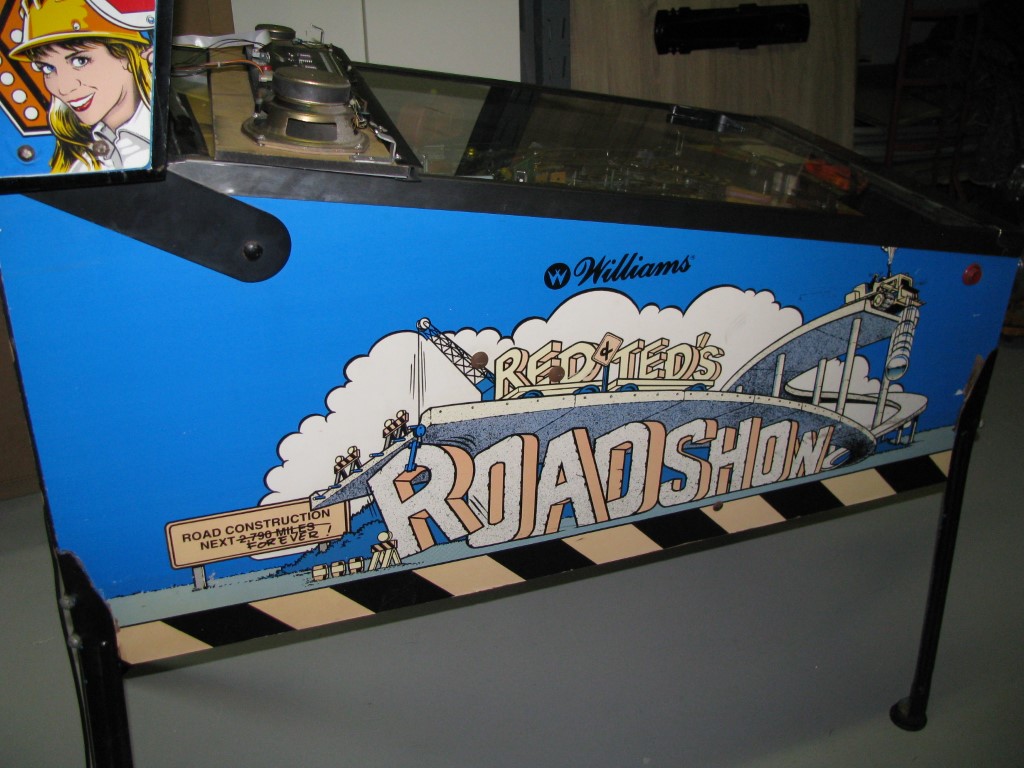
in a very rough and non-working condition. It’s easy to underestimate the amount of work that will go into restoring such
a machine when you’re doing a quick inspection at the sellers house, but with this one we were really in for a treat (in a negative sense).</p>

<h2 id="initial-inspection-water-damage-electronic-hacks-and-missing-parts">Initial inspection: water damage, electronic hacks and missing parts</h2>

<figure class="third ">
  
    
      <a href="/assets/images/roadshow/demontage/IMG_0288_medium.JPG" title="View of the playfield">
          <img src="/assets/images/roadshow/demontage/IMG_0288_thumb.JPG" alt="playfield overview" />
      </a>


      <a href="/assets/images/roadshow/demontage/IMG_0292_medium.JPG" title="Ugly side art">
          <img src="/assets/images/roadshow/demontage/IMG_0292_thumb.JPG" alt="side art" />
      </a>


      <a href="/assets/images/roadshow/demontage/IMG_0293_medium.JPG" title="Water damaged backbox">
          <img src="/assets/images/roadshow/demontage/IMG_0293_thumb.JPG" alt="water damaged backbox" />
      </a>


      <a href="/assets/images/roadshow/demontage/IMG_0296_medium.JPG" title="Water damaged bottom board">
          <img src="/assets/images/roadshow/demontage/IMG_0296_thumb.JPG" alt="water damaged bottom" />
      </a>


      <a href="/assets/images/roadshow/demontage/IMG_0297_medium.JPG" title="Water damaged bottom board closeup">
          <img src="/assets/images/roadshow/demontage/IMG_0297_thumb.JPG" alt="water damaged bottom" />
      </a>


      <a href="/assets/images/roadshow/demontage/IMG_0298_medium.JPG" title="Coin door that seems to have been painted with Hammerite">
          <img src="/assets/images/roadshow/demontage/IMG_0298_thumb.JPG" alt="coin door" />
      </a>


      <a href="/assets/images/roadshow/demontage/IMG_0300_medium.JPG" title="melted and rusted ramps, discolored helmets and bulldozer">
          <img src="/assets/images/roadshow/demontage/IMG_0300_thumb.JPG" alt="ramps" />
      </a>


      <a href="/assets/images/roadshow/demontage/IMG_0291_medium.JPG" title="Discolored side art">
          <img src="/assets/images/roadshow/demontage/IMG_0291_thumb.JPG" alt="discolored side art" />
      </a>


      <a href="/assets/images/roadshow/demontage/IMG_0294_medium.JPG" title="Discolored side art left side">
          <img src="/assets/images/roadshow/demontage/IMG_0294_thumb.JPG" alt="discolored side art" />
      </a>


    <figcaption>The state of the cabinet &amp; playfield. Notice the legs are painted black but the original blue is still on the inside.
</figcaption>
  
</figure>

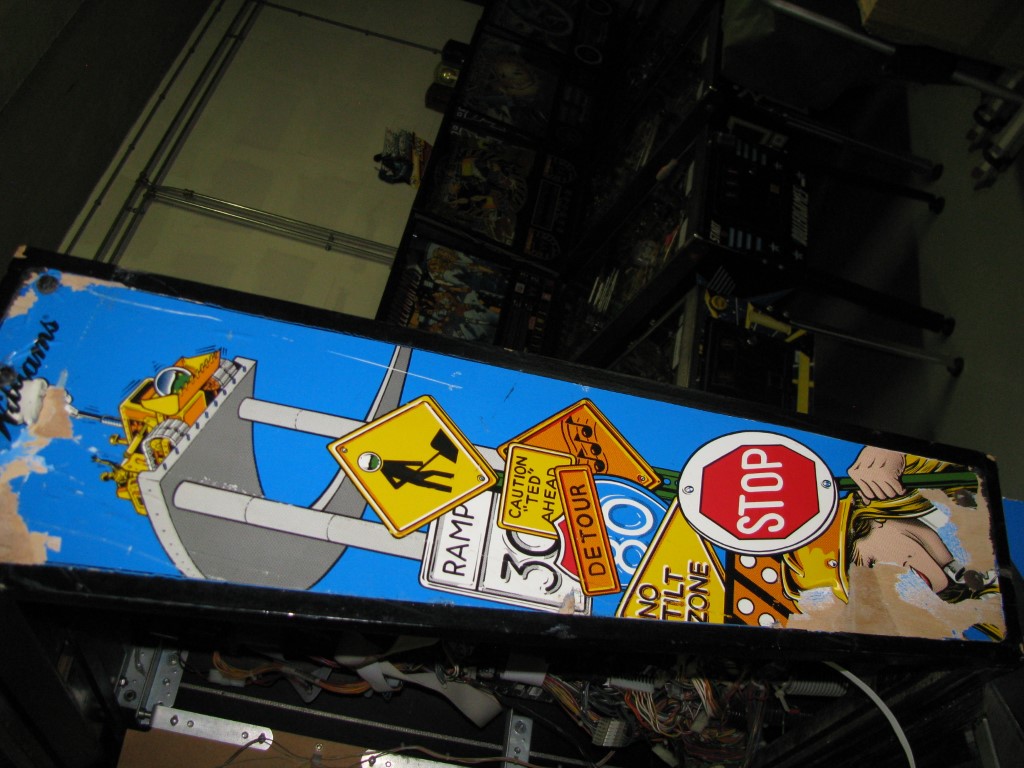
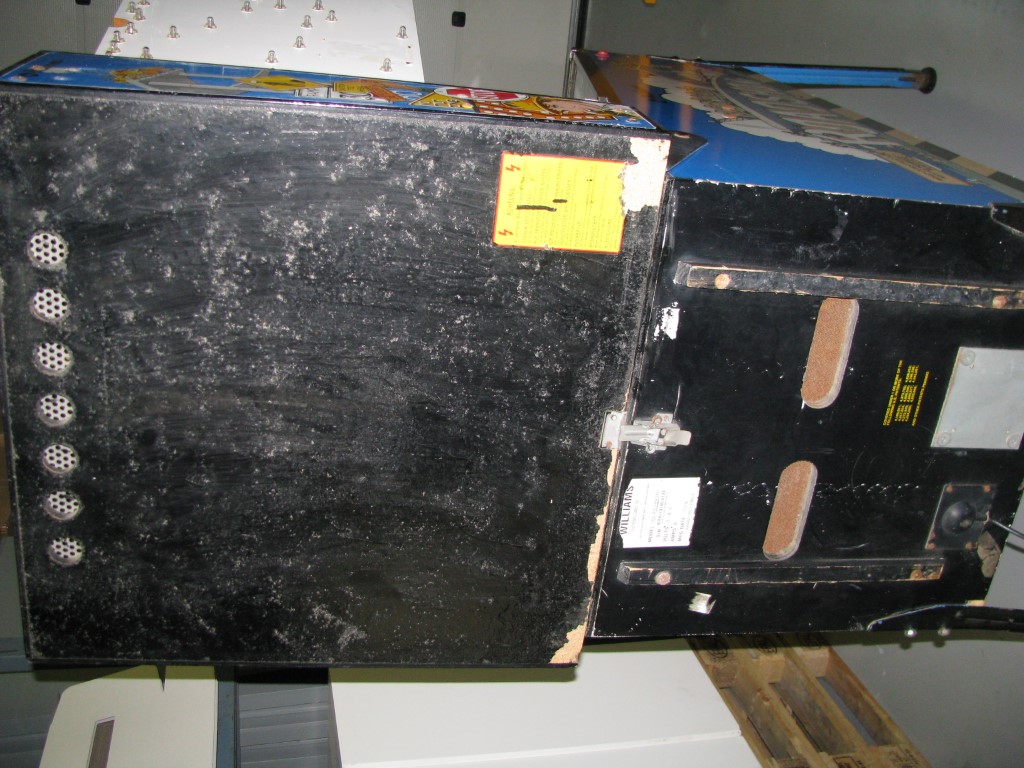
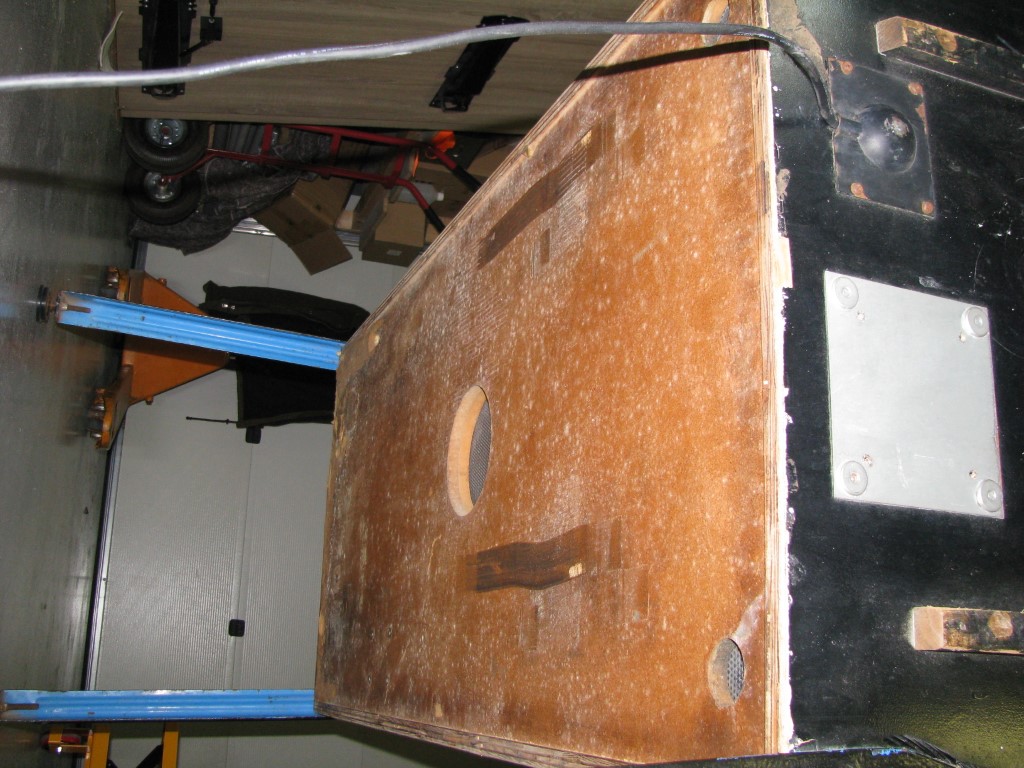
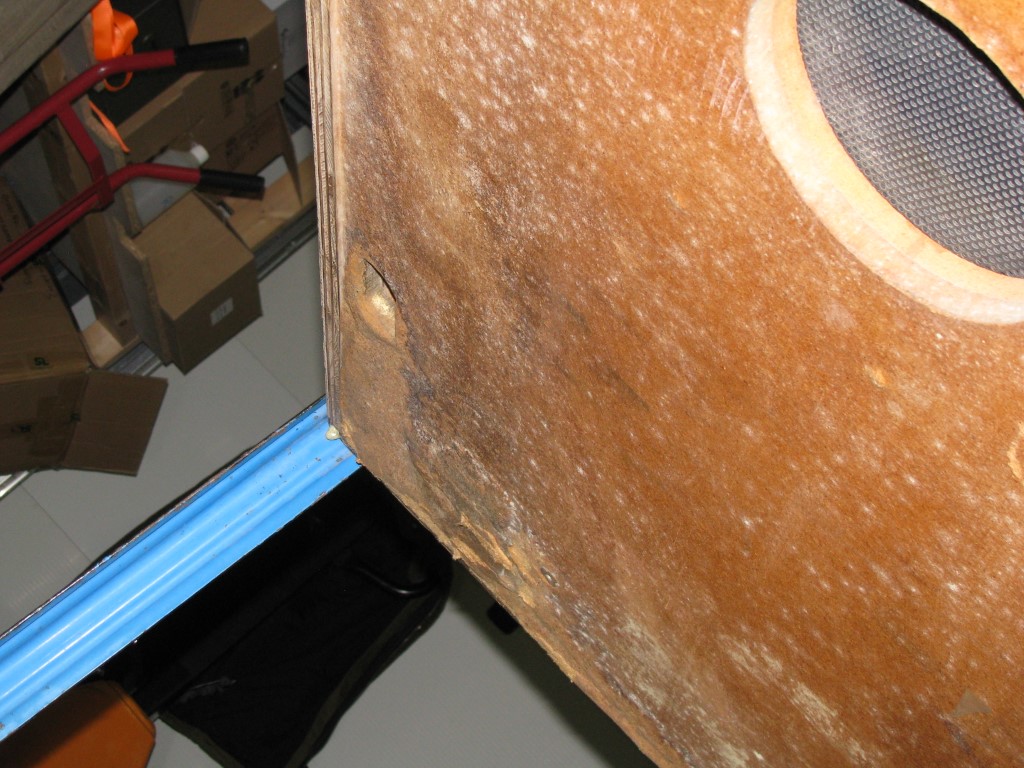
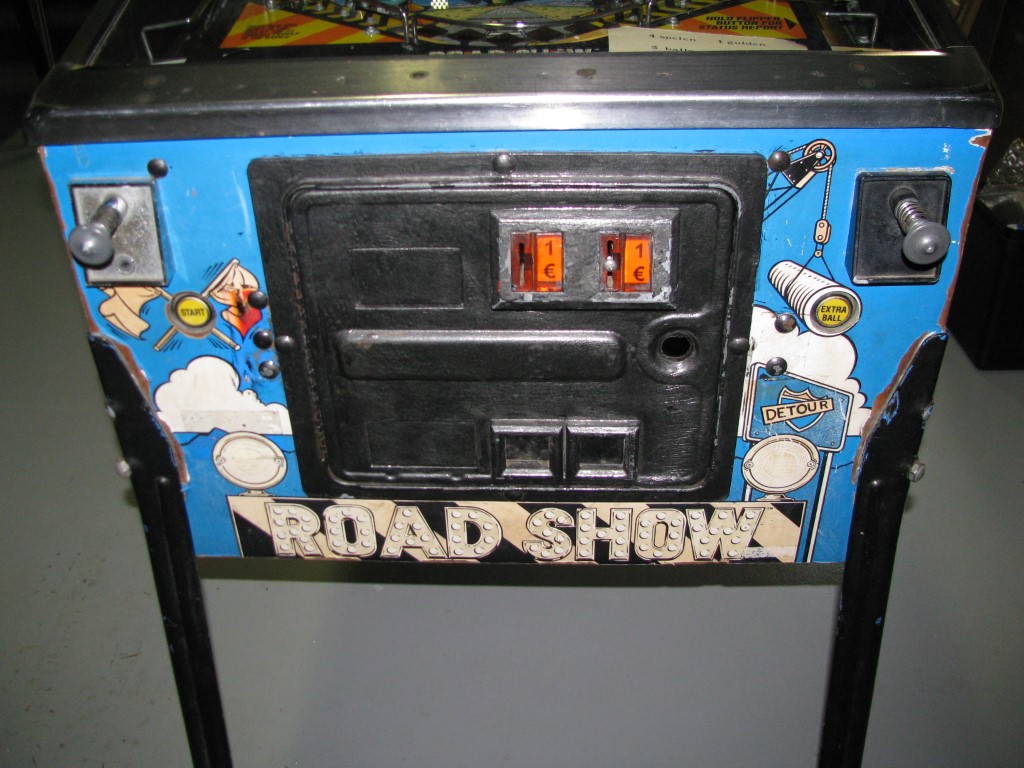
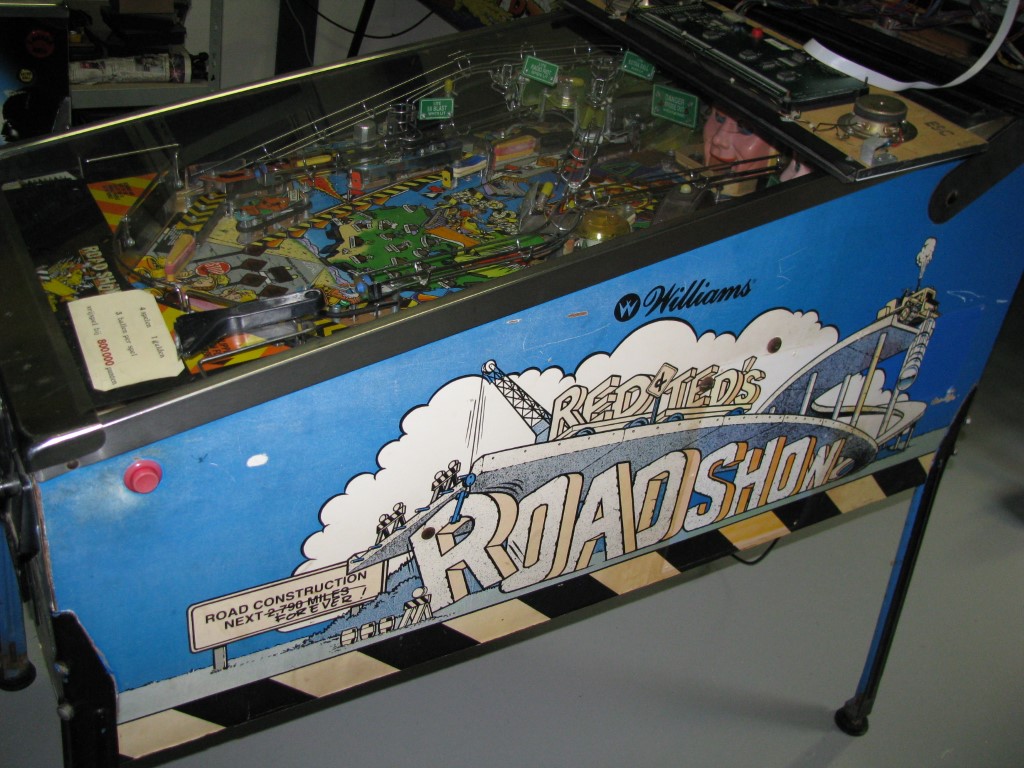
<p>The bottom of the cabinet and backplate of the backbox were heavily water damaged. The cabinet artwork
was sun-faded, and the cabinet itself lacked structural integrity. It would wobble on the (badly painted) legs, which were also
missing a few leg bolts. The ones that <em>were</em> there were mismatched.</p>

<figure class="third ">
  
    
      <a href="/assets/images/roadshow/printplaat/DSC_0890_medium.JPG" title="Computer psu hacked into the wiring harness">
          <img src="/assets/images/roadshow/printplaat/DSC_0890_thumb.JPG" alt="computer psu" />
      </a>


      <a href="/assets/images/roadshow/printplaat/DSC_0891_medium.JPG" title="Hacked power supply box">
          <img src="/assets/images/roadshow/printplaat/DSC_0891_thumb.JPG" alt="hacked power supply box" />
      </a>


      <a href="/assets/images/roadshow/printplaat/DSC_1089_medium.JPG" title="Who doesn&#39;t love these terminal blocks?">
          <img src="/assets/images/roadshow/printplaat/DSC_1089_thumb.JPG" alt="terminal block" />
      </a>


    <figcaption>Wiring harness hacks
</figcaption>
  
</figure>

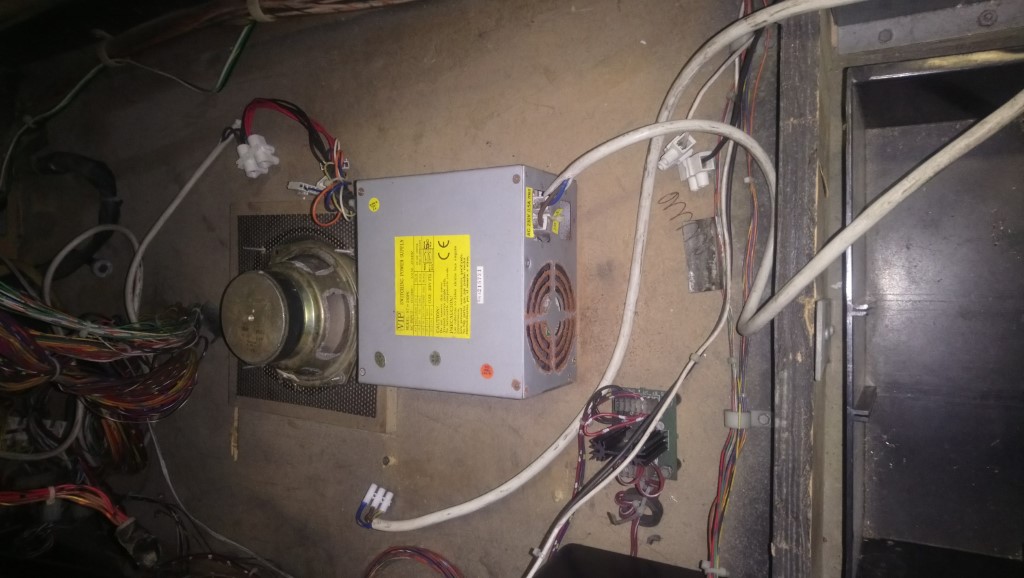
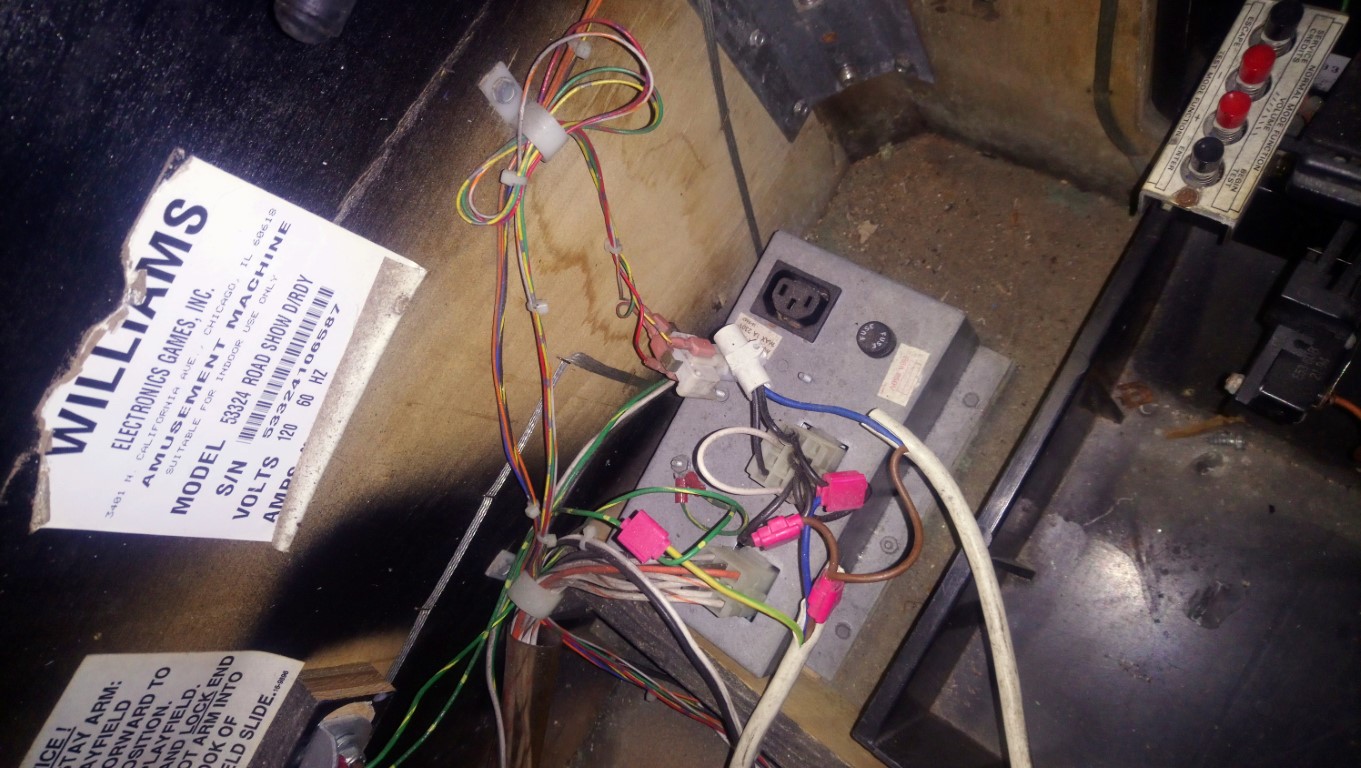
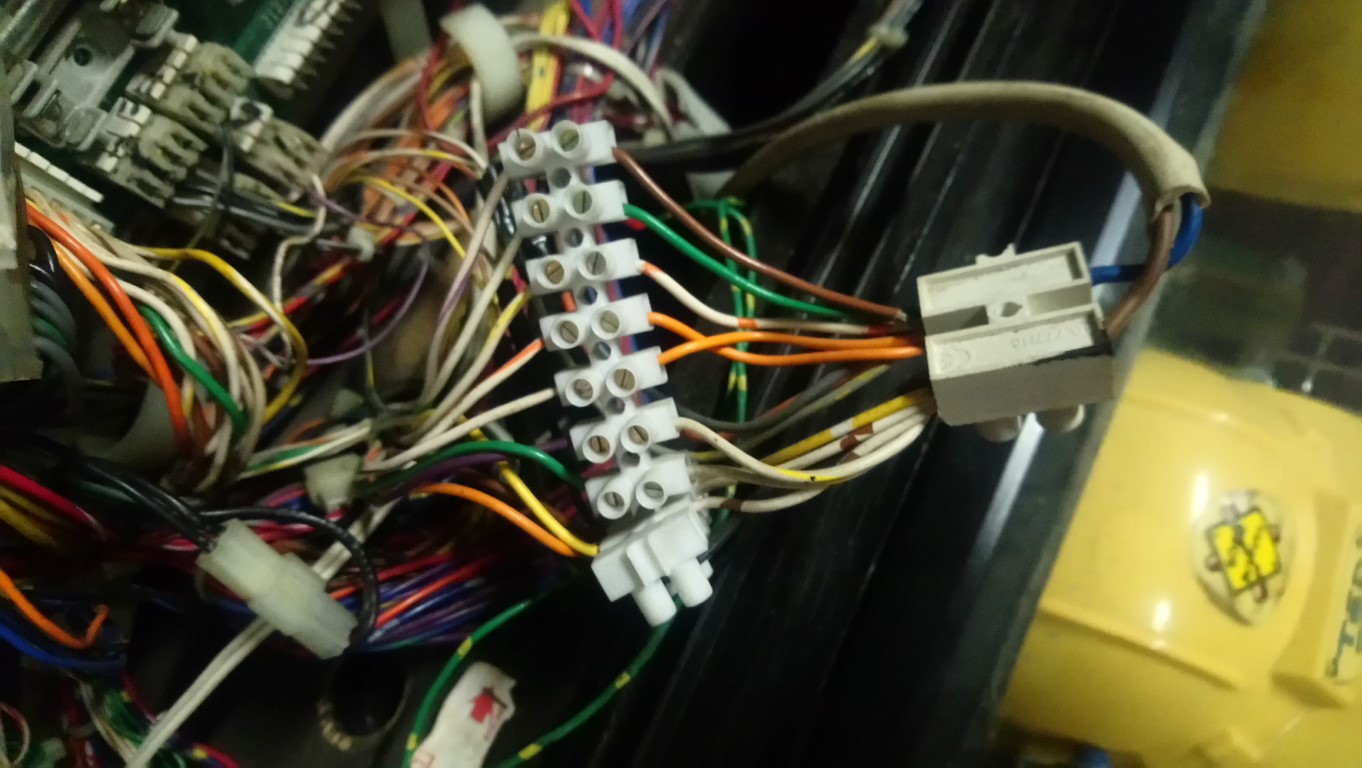
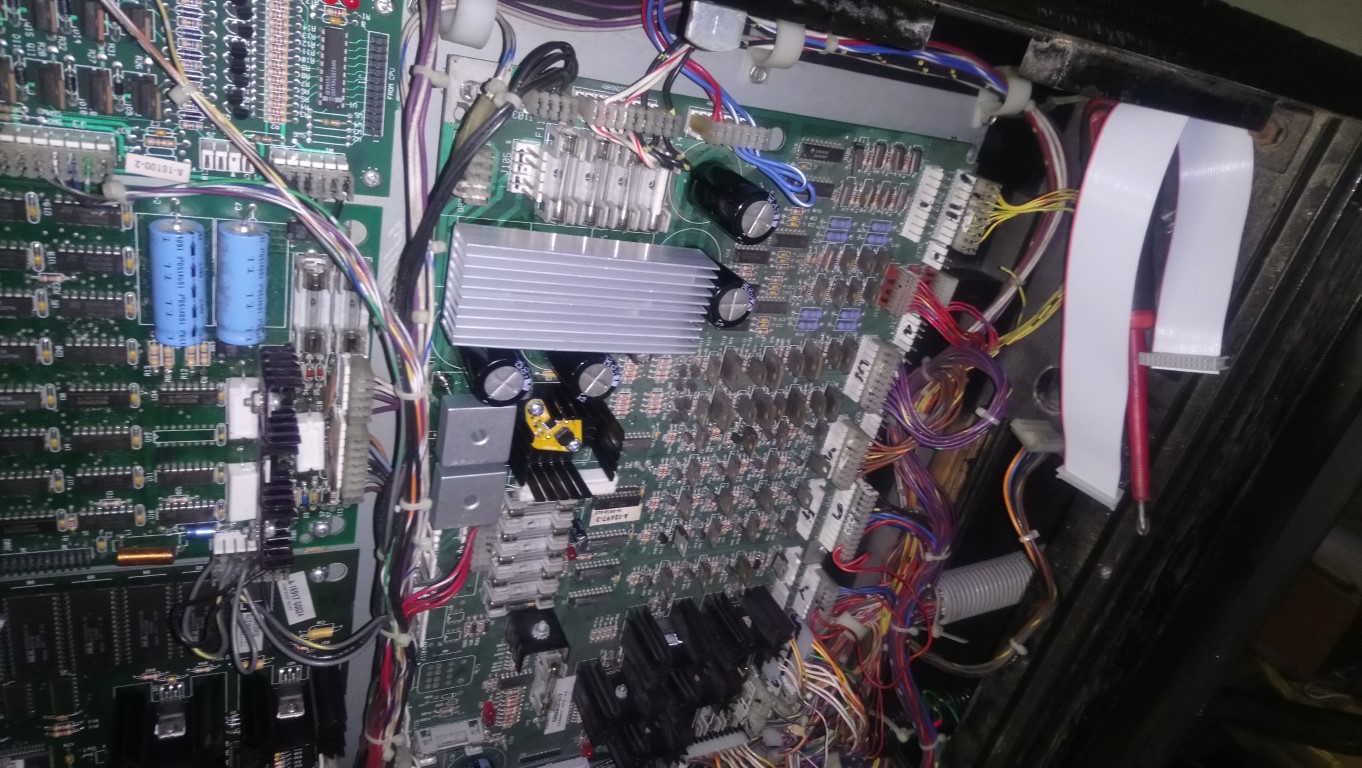
<p>Electronically there were a lot of hacks. A regular ATX computer PSU was hacked into the wiring loom using
terminal blocks, and mismatched colored wires were connected together. The main (MPU) board was missing, all the 
flatcables were missing, and the power driver board was hacked up and missing the 5 volt regulator.</p>

<figure class="half ">
  
    
      <a href="/assets/images/roadshow/printplaat/DSC_0888_medium.JPG" title="A nice PC fan to keep it cool">
          <img src="/assets/images/roadshow/printplaat/DSC_0888_thumb.JPG" alt="rectifier fan" />
      </a>


      <a href="/assets/images/roadshow/printplaat/DSC_0889_medium.JPG" title="hacked rectifiers">
          <img src="/assets/images/roadshow/printplaat/DSC_0889_thumb.JPG" alt="hacked rectifiers" />
      </a>


    <figcaption>The hack-tifiers
</figcaption>
  
</figure>

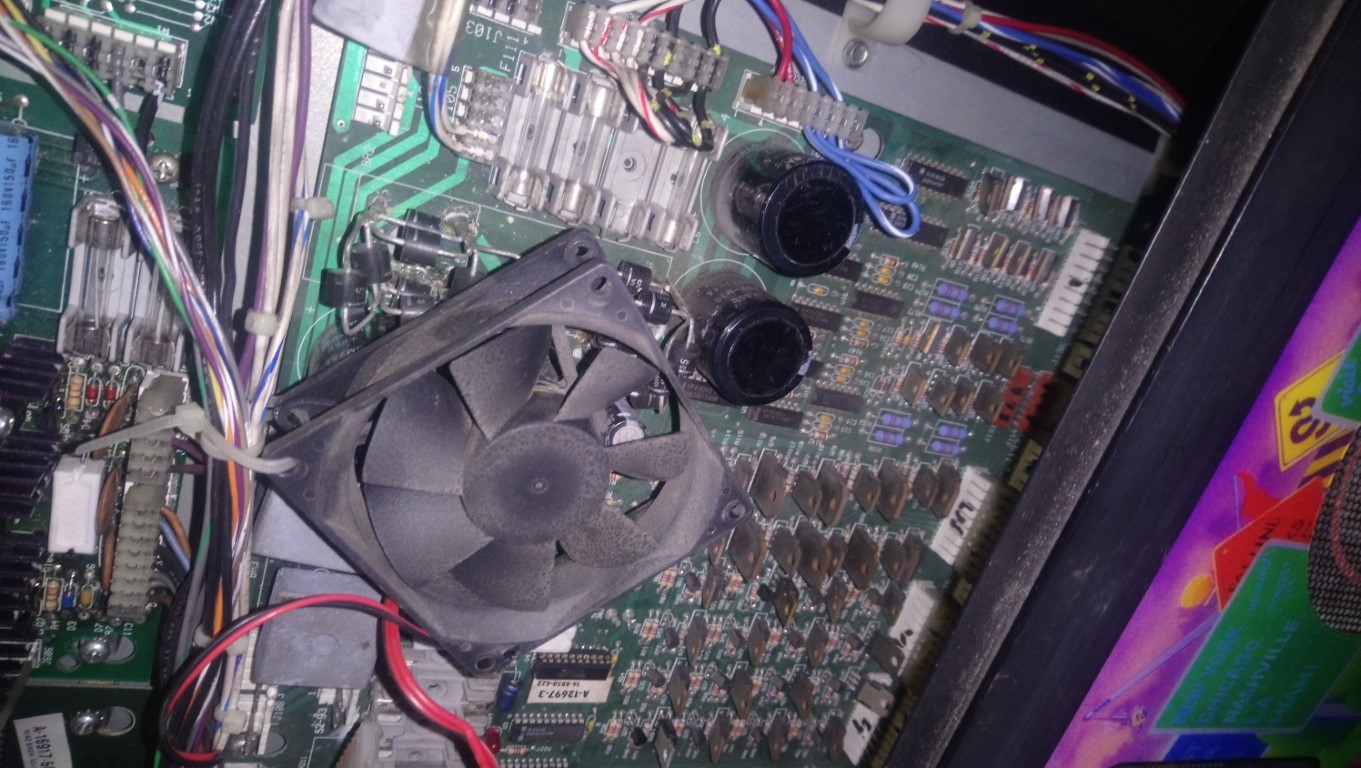
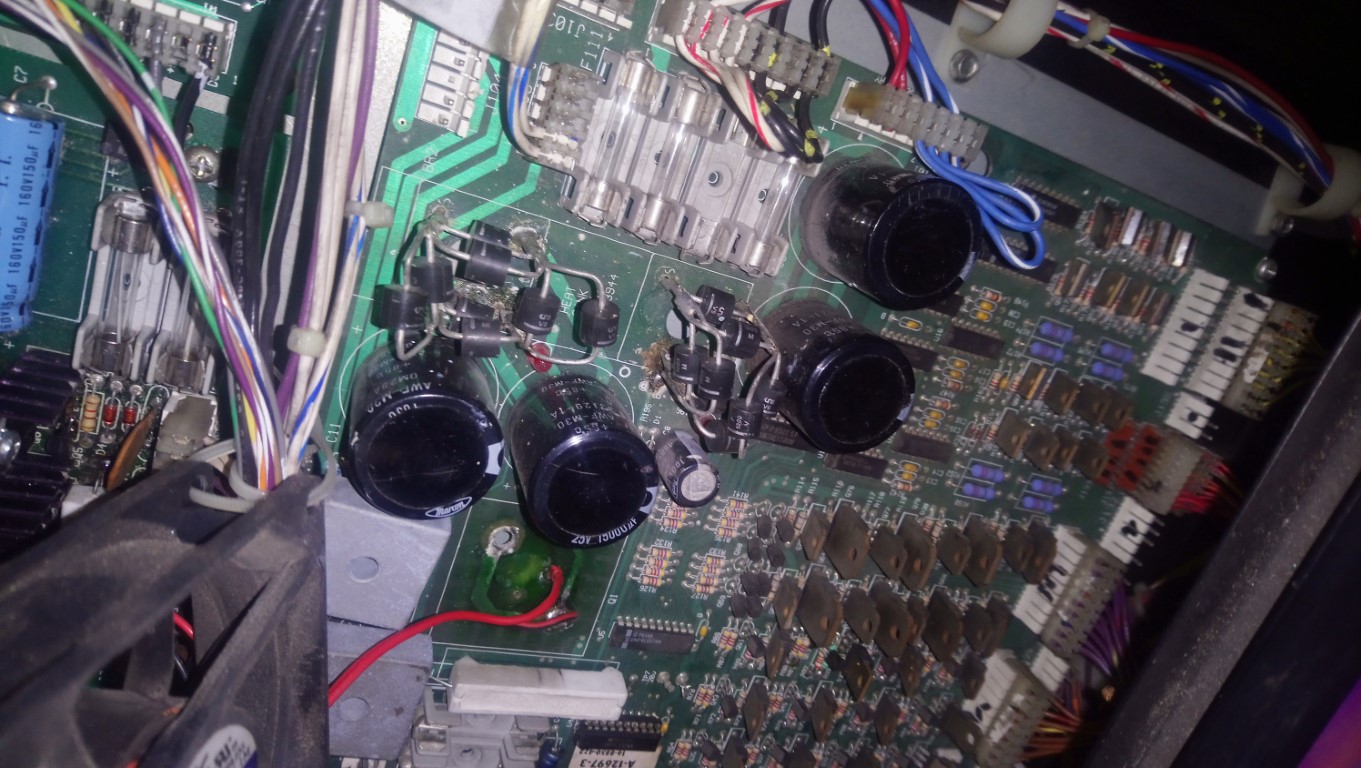
<p>A special shoutout goes to the “rectifiers” on the power driver board, that were just a bunch of diodes
soldered together, with a computer fan ziptied to the cable harness to help cool it down.</p>

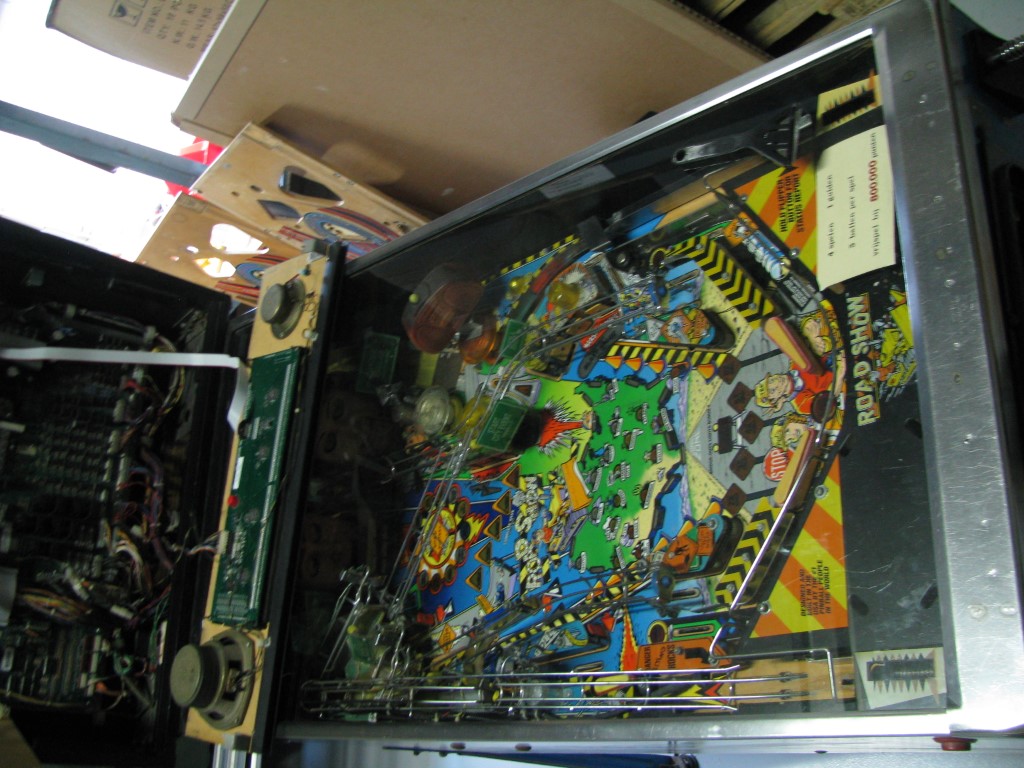
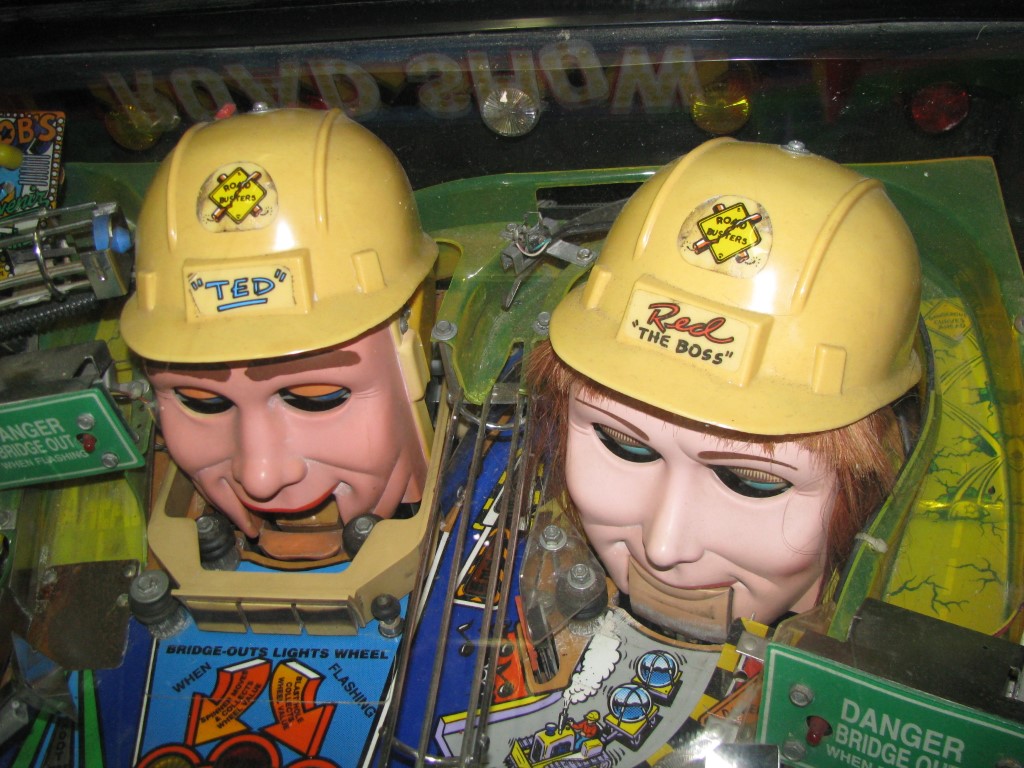
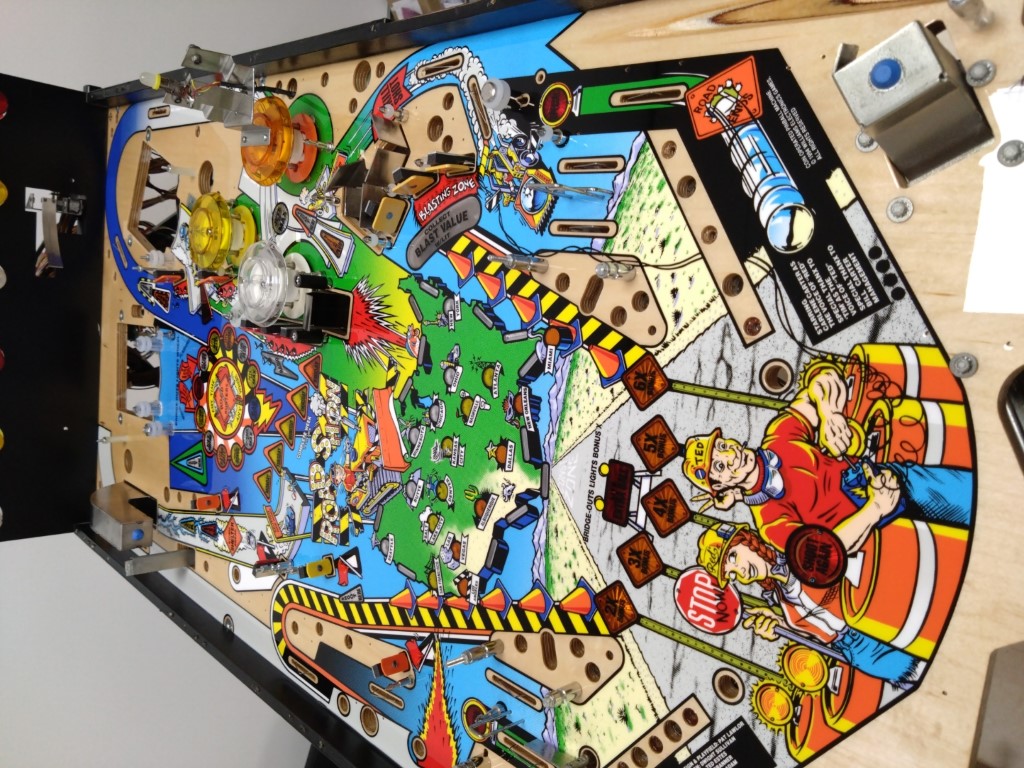
<p>The playfield itself wasn’t too bad, but the toys on the playfield such as the hardhats and radio were sun-faded.
It seemed like the ramps actually got melted from heat. This thing must have been standing in the blazing sun for
several years! Making it odd that the playfield was in relatively good shape.</p>

<h2 id="getting-it-to-work">Getting it to work</h2>

<p>Before starting the restoration process, we always like to get the machine (mostly) working first. That way
we know that if it doesn’t work anymore after restoring it, it must be something (small) that we forgot or 
caused ourselves.</p>

<p>First order of business was obtaining the missing MPU board, ROMs and the rare “security chip” to make it work. We
managed to source everything from various places, and luckily it wasn’t that expensive.</p>

<h3 id="de-hacking-the-power-driver-board">De-hacking the power driver board</h3>

<p>I posted a few photos of our hacked board to the <a href="https://pinside.com/pinball/forum/list">Pinside forum</a>. They have a special thread for the purpose
of poking fun at the various hacks we find in machines, <a href="https://pinside.com/pinball/forum/topic/worst-hackrepair-you-ever-saw/page/59#post-6031659">it definitely got some laughs</a>, and people saying this board is done for.</p>

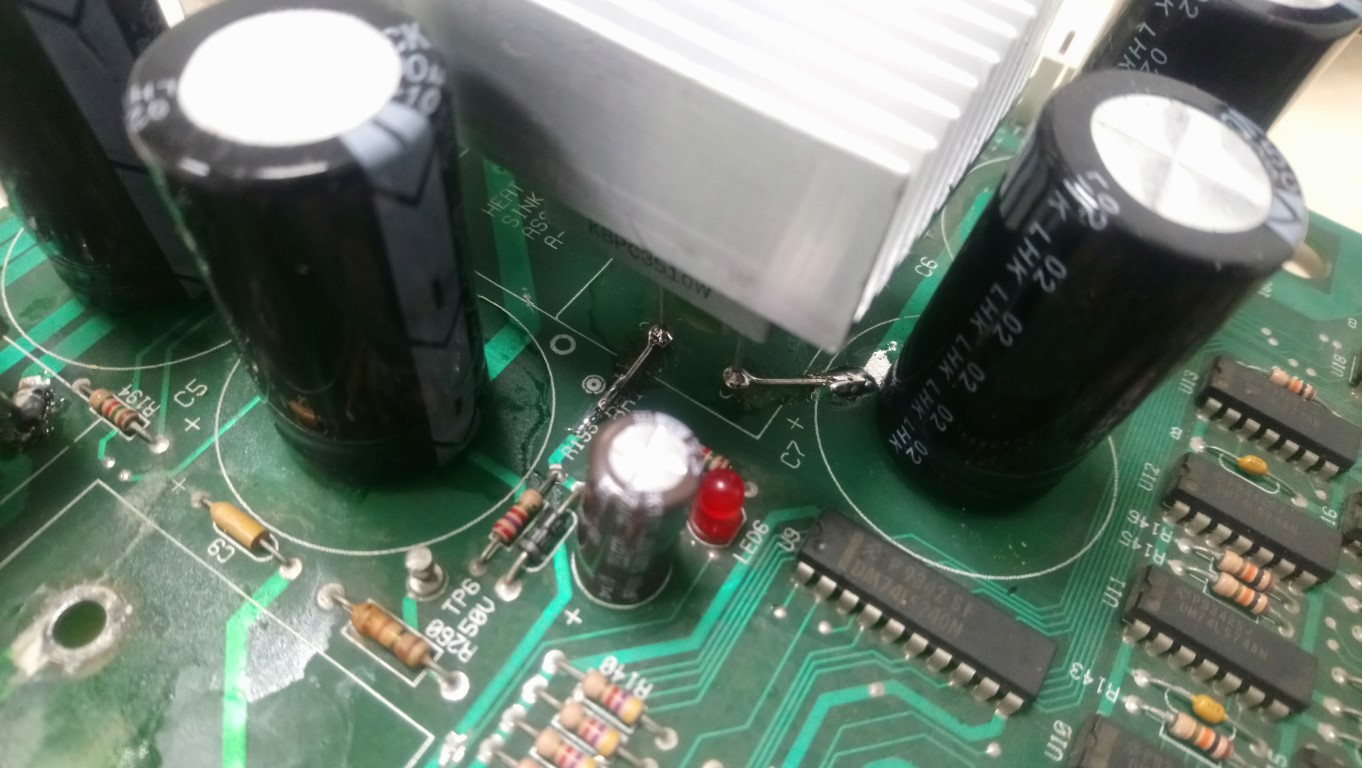
<p><em>Challenge accepted</em>. I’ve replaced the rectifiers, recapped the board and replaced the missing LM323K 5-volt regulator
with the <a href="https://www.ezsbc.com/product/psu5/">PSU5 regulator by EzSBC</a>, because the original LM323Ks are expensive and hard to come by these days. 
This has the added benefit of being more reliable and generating less heat.</p>

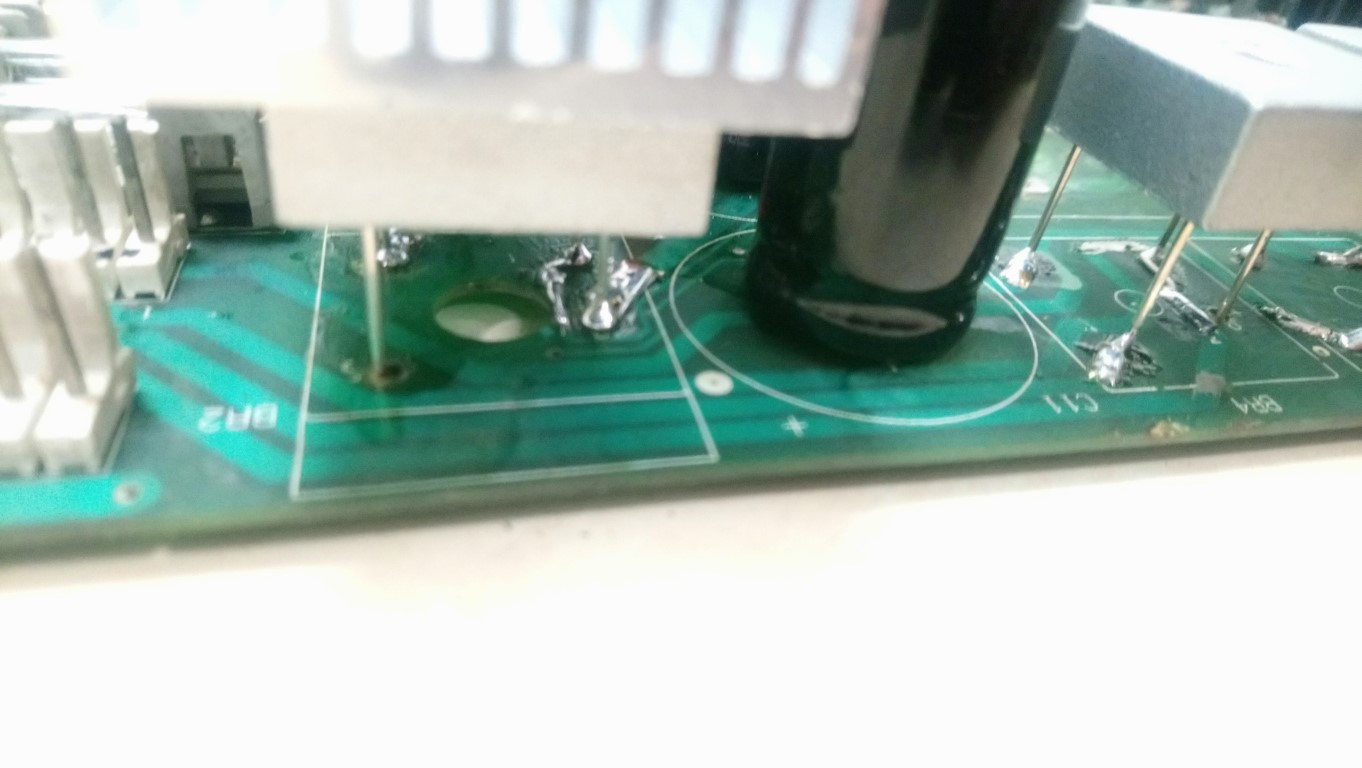
<p>The board still required some hacks and jumper wires to make it work because a lot of pads were lifted
and traces were broken.</p>

<figure class="third ">
  
    
      <a href="/assets/images/roadshow/printplaat/DSC_0010_medium.JPG" title="Recapped and fixed traces">
          <img src="/assets/images/roadshow/printplaat/DSC_0010_thumb.JPG" alt="capacitors" />
      </a>


      <a href="/assets/images/roadshow/printplaat/DSC_0011_medium.JPG" title="Rectifiers soldered on top of board because of missing traces">
          <img src="/assets/images/roadshow/printplaat/DSC_0011_thumb.JPG" alt="trace repair" />
      </a>


      <a href="/assets/images/roadshow/printplaat/DSC_0013_medium.JPG" title="Replacement AliExpress heatsink">
          <img src="/assets/images/roadshow/printplaat/DSC_0013_thumb.JPG" alt="board in machine" />
      </a>


    <figcaption>Repaired board
</figcaption>
  
</figure>

<p>The heatsink for the rectifiers was also missing and hard to find (I mean, why would anyone ever need to replace that?!).
So we’ve ordered a generic heatsink of about the same dimensions from AliExpress and drilled &amp; tapped holes in it to attach it.</p>

<p>After troubleshooting some issues the board was working.</p>

<h3 id="de-hacking-the-wiring-harness">De-hacking the wiring harness</h3>

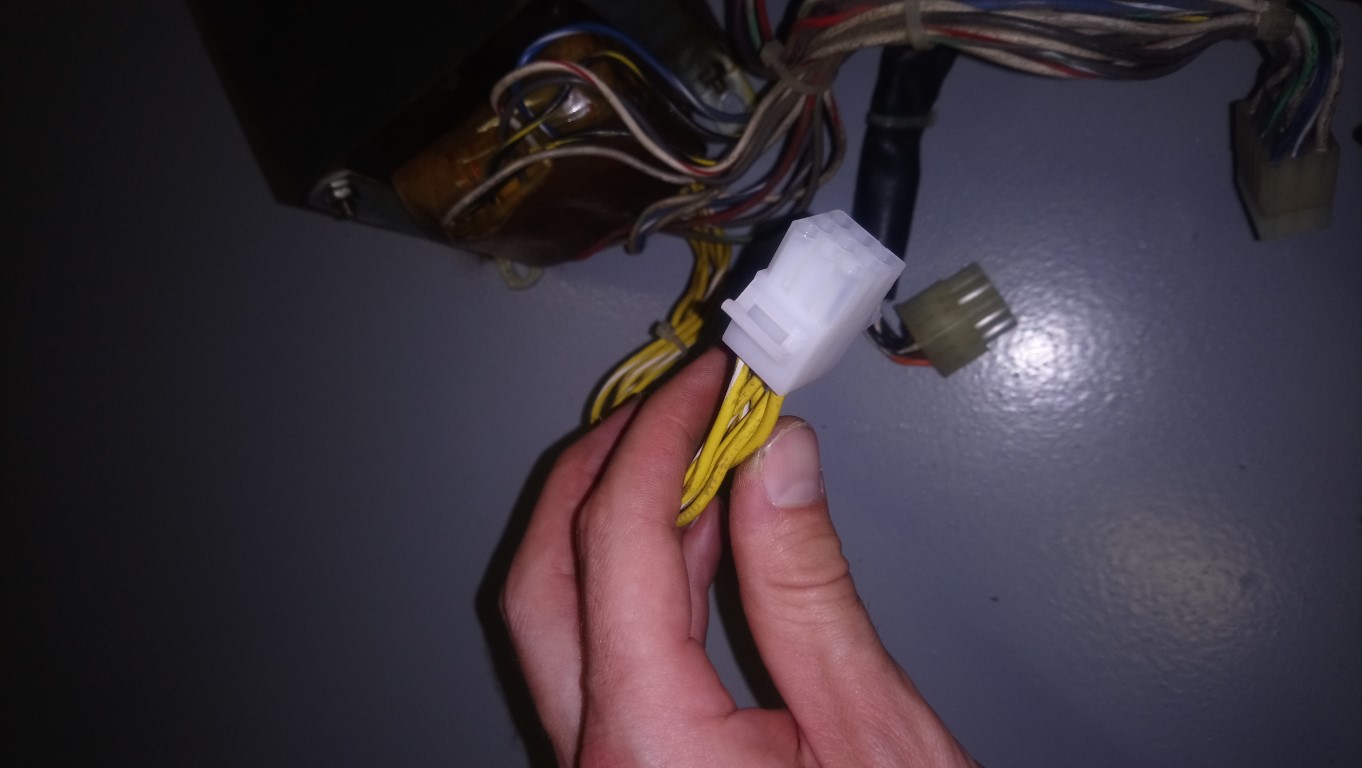
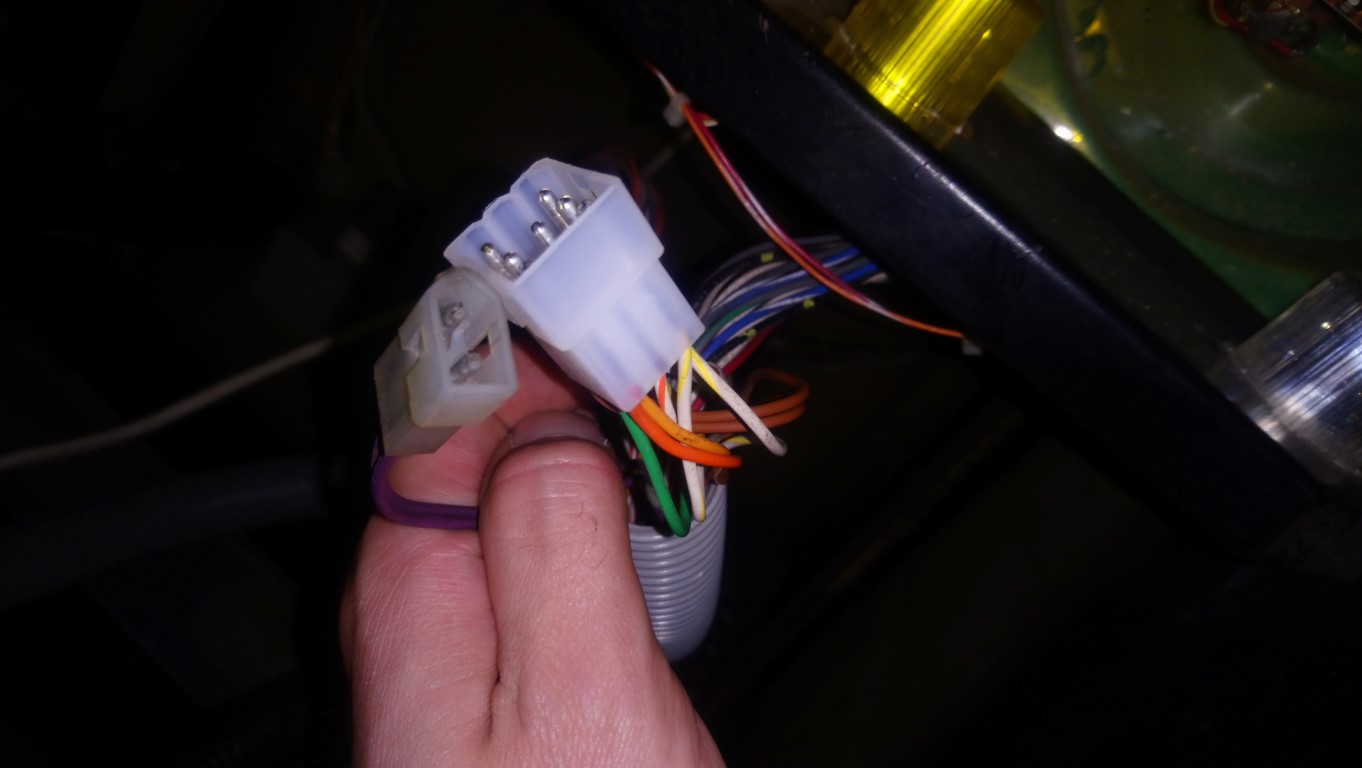
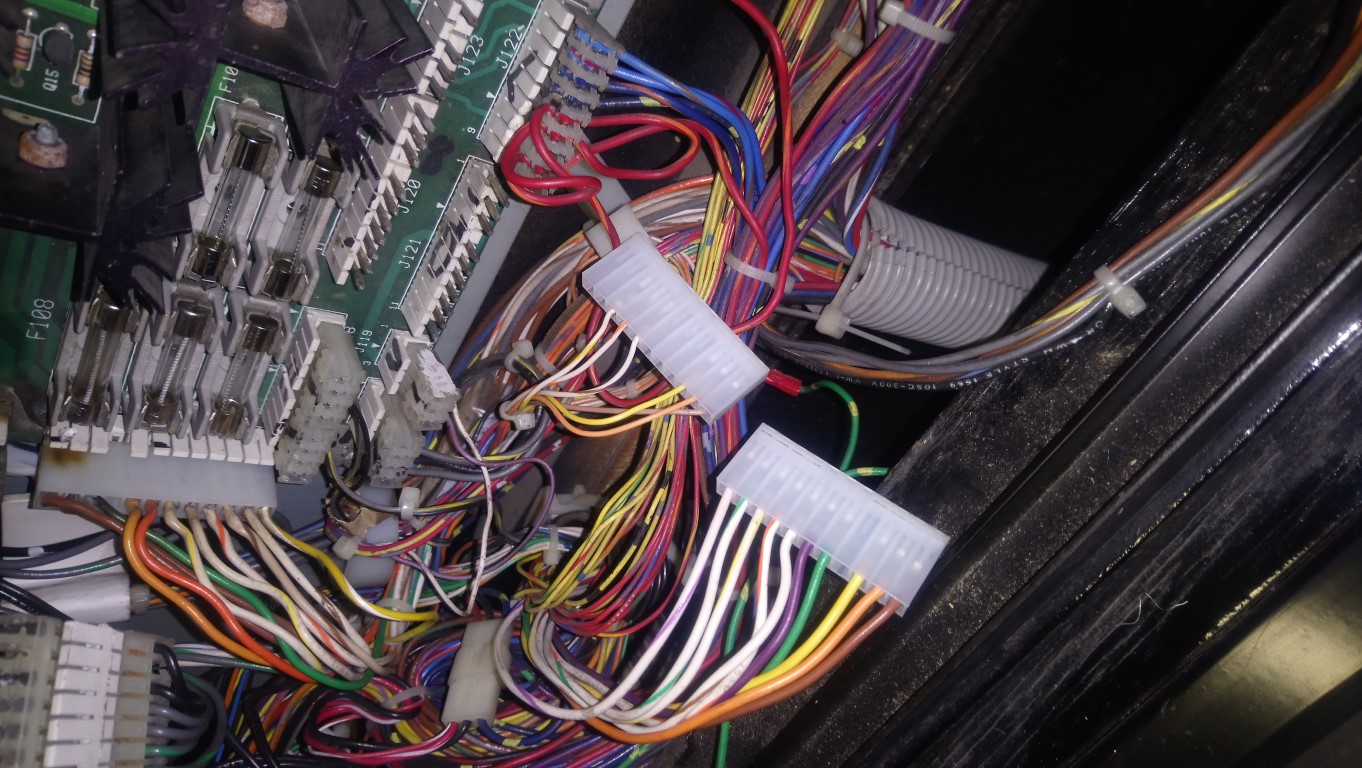
<p>The wiring harness had hacks everywhere, loose wires, broken connectors, terminal blocks to wire things together, it was 
a mess. I’ve untangled everything, replaced the connectors, and put everything back the way it was from the factory.</p>

<p>The manual was very helpful in this because it has a few pages in it that detail every connector, the wire colors and where they go.</p>

<figure class="third ">
  
    
      <a href="/assets/images/roadshow/printplaat/DSC_1130_medium.JPG" title="Repaired GI connector to replace the terminal block that was here">
          <img src="/assets/images/roadshow/printplaat/DSC_1130_thumb.JPG" alt="GI Connector" />
      </a>


      <a href="/assets/images/roadshow/printplaat/DSC_1131_medium.JPG" title="The mating GI connector">
          <img src="/assets/images/roadshow/printplaat/DSC_1131_thumb.JPG" alt="GI connector other side" />
      </a>


      <a href="/assets/images/roadshow/printplaat/DSC_1133_medium.JPG" title="Fixed GI connectors on the other end">
          <img src="/assets/images/roadshow/printplaat/DSC_1133_thumb.JPG" alt="GI connectors" />
      </a>


    <figcaption>Fixed connectors
</figcaption>
  
</figure>

<h3 id="making-our-own-flatcables">Making our own flatcables</h3>

<p>While a single flatcable isn’t that expensive when its broken or missing, it does add up when you have to 
buy ALL of them. It was actually cheaper to buy the individual connectors, flatcables and the crimping tool to make them ourselves, than it was to buy a single set of cables for the machine. 
And going forward we can just crimp our own flatcables! <em>Give a man a fish ‘n all…</em></p>

<h2 id="restoring-the-cabinet">Restoring the cabinet</h2>

<p>We thought it was a good idea to start restoring the cabinet first. If we had started with the playfield
we would’ve probably just put it back in the cabinet when it was ready, and postponed restoring the cabinet indefinitely.</p>

<h3 id="powdercoating-the-metal-parts">Powdercoating the metal parts</h3>

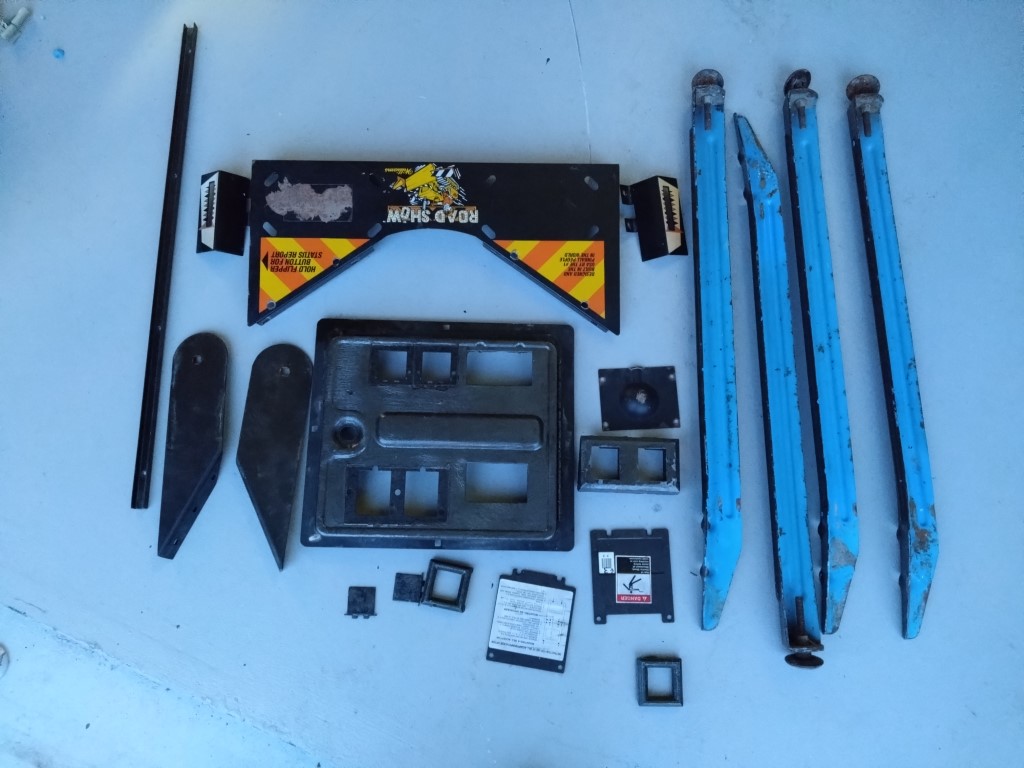
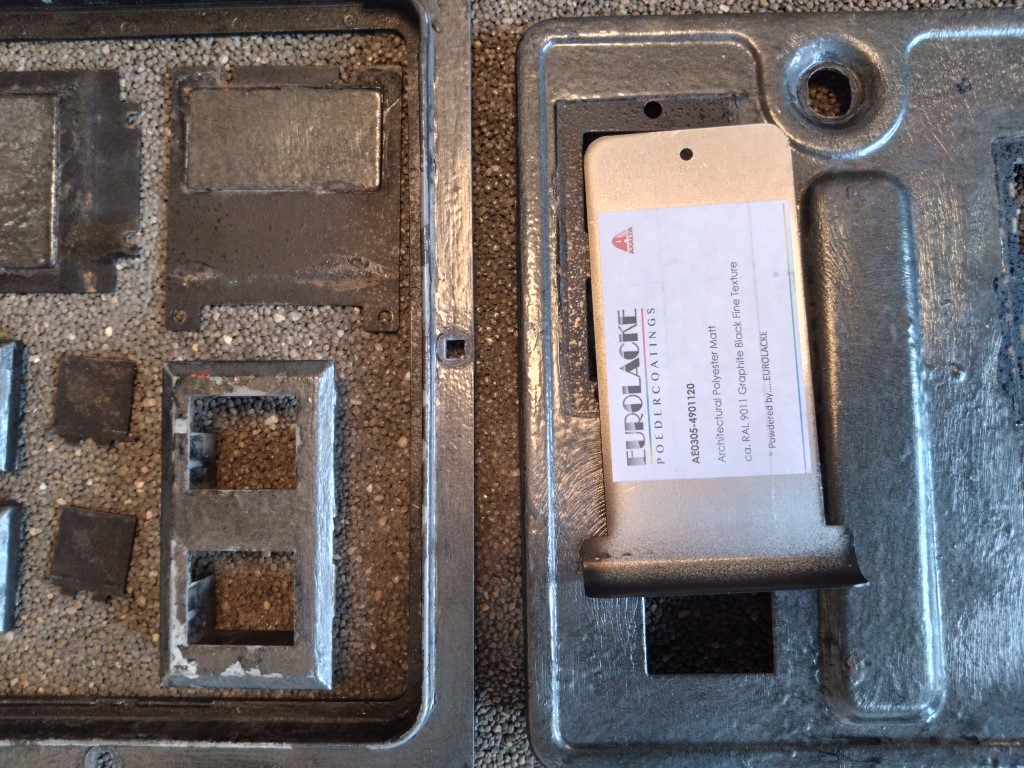
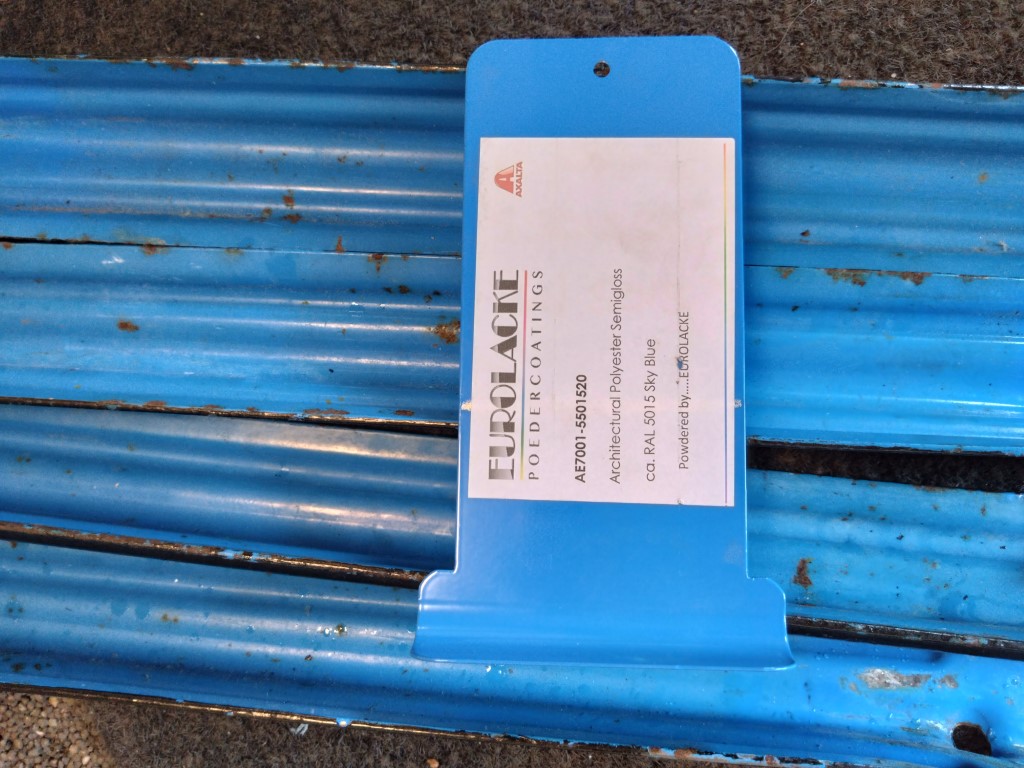
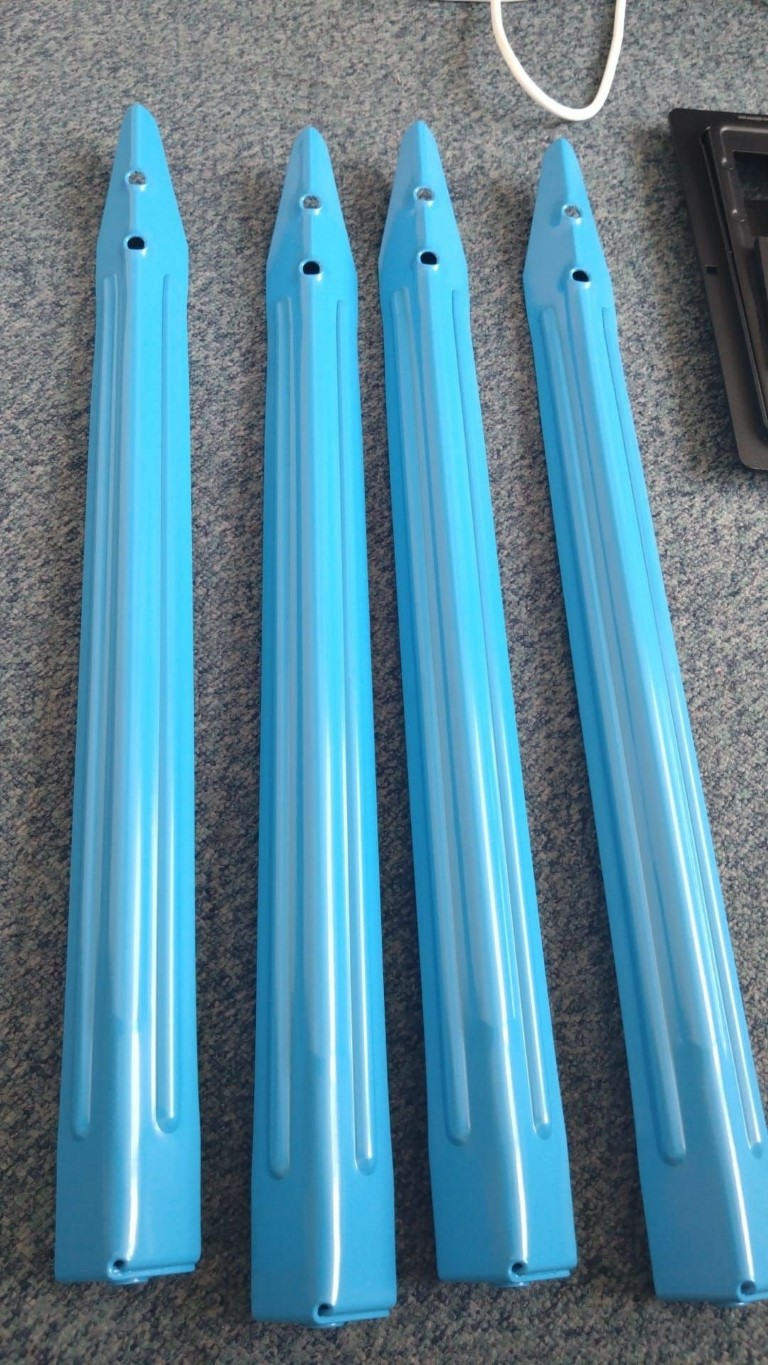
<p>We had the coin door, legs and various other metal bits powdercoated, which was a first for us, and it totally exceeded our
expectations. The result was amazing!</p>

<figure class="third ">
  
    
      <a href="/assets/images/roadshow/poedercoat/DSC_1109%201_medium.JPG" title="Parts to be powdercoated">
          <img src="/assets/images/roadshow/poedercoat/DSC_1109%201_thumb.JPG" alt="parts" />
      </a>


      <a href="/assets/images/roadshow/poedercoat/DSC_1113%201_medium.JPG" title="Coin door &amp; color">
          <img src="/assets/images/roadshow/poedercoat/DSC_1113%201_thumb.JPG" alt="Coin door" />
      </a>


      <a href="/assets/images/roadshow/poedercoat/DSC_1115_medium.JPG" title="Legs before">
          <img src="/assets/images/roadshow/poedercoat/DSC_1115_thumb.JPG" alt="Pinball legs" />
      </a>


      <a href="/assets/images/roadshow/poedercoat/Pinside_forum_8003564_1_medium.jpg" title="Legs after">
          <img src="/assets/images/roadshow/poedercoat/Pinside_forum_8003564_1_thumb.jpg" alt="Pinball legs" />
      </a>


      <a href="/assets/images/roadshow/poedercoat/Pinside_forum_8003564_4_medium.jpg" title="Coin door, unfortunately has a small defect but its barely noticeable">
          <img src="/assets/images/roadshow/poedercoat/Pinside_forum_8003564_4_thumb.jpg" alt="Coin door" />
      </a>


    <figcaption>Powder coating before &amp; afters
</figcaption>
  
</figure>

<ul>
  <li>Coin door: <strong>RAL9011</strong> Graphite Black Fine Texture Matt</li>
  <li>Legs: <strong>RAL5015</strong> Sky Blue Semigloss</li>
  <li>Various black metal bits: <strong>RAL9011</strong> Graphite Black Semigloss</li>
</ul>

<h3 id="removing-the-old-decals">Removing the old decals</h3>

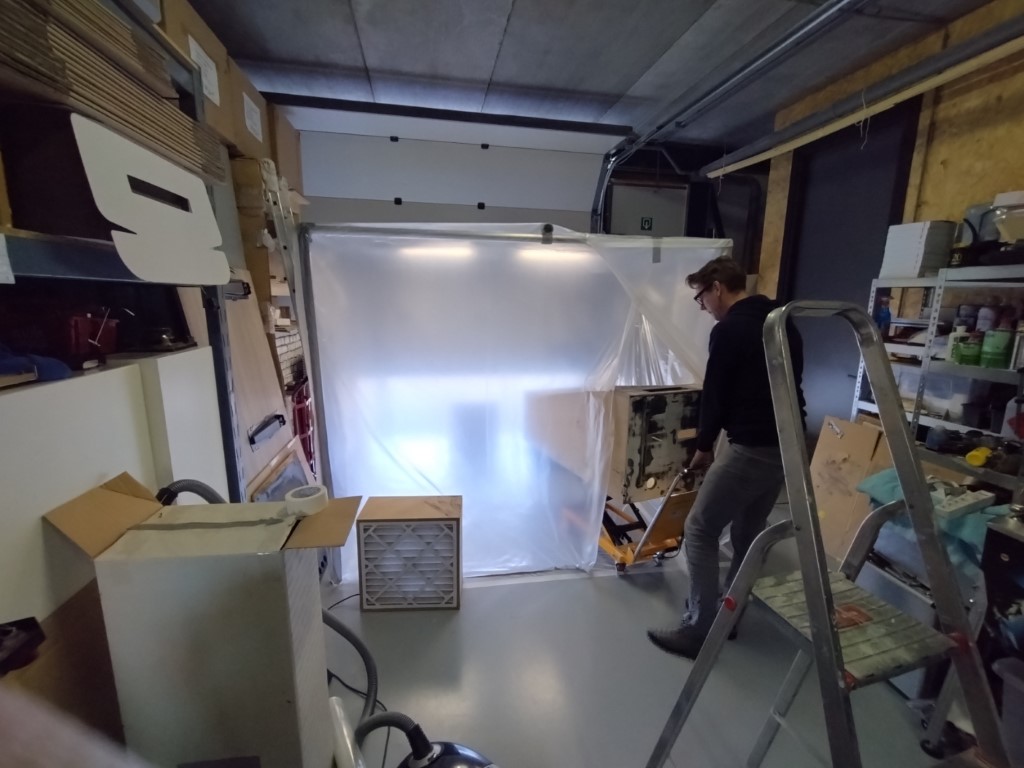
<p>A heat gun, scraper and some teamwork made easy work of removing the old decals from the cabinet.</p>

<h3 id="reinforcing-the-cabinet">Reinforcing the cabinet</h3>

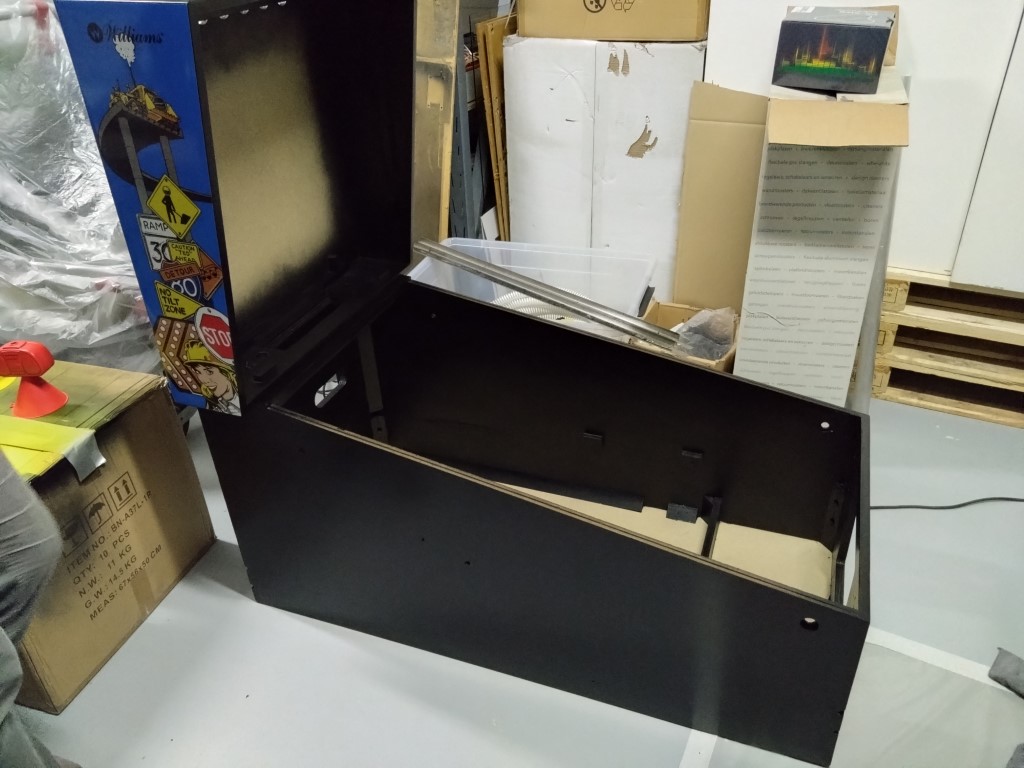
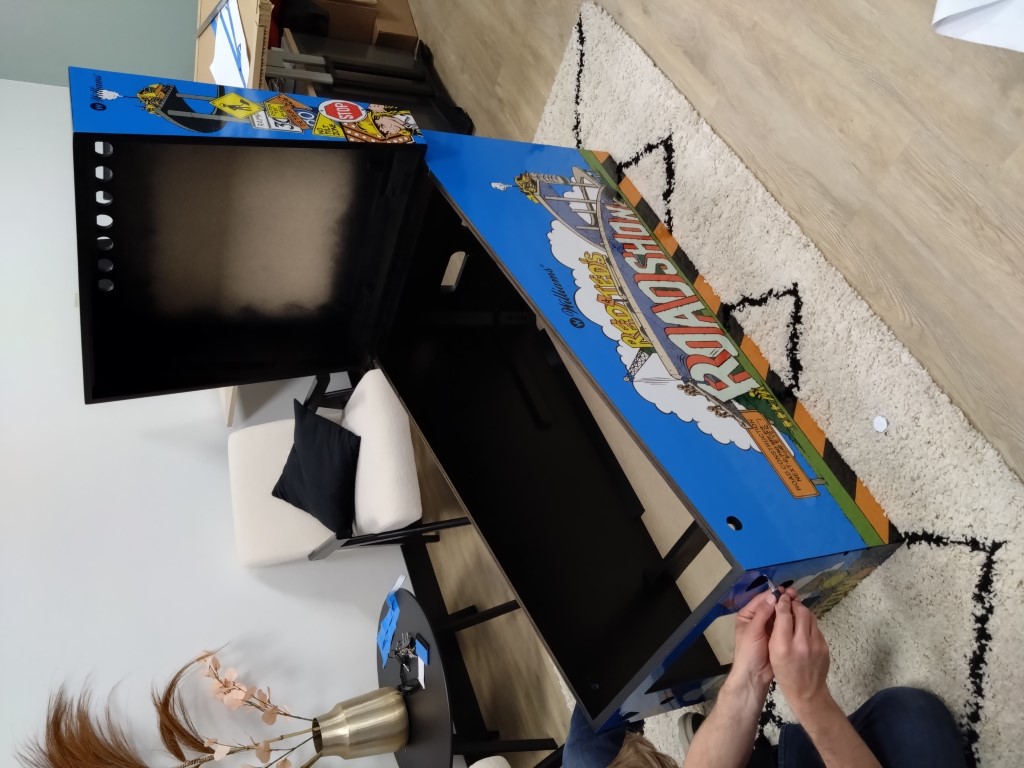
<p>The cabinet was crooked and lacked structural integrity. Not to mention the bottom panel was all swollen
up due to moisture. We replaced the bottom panel and carefully routed the hole for the subwoofer and holes for the power
switch and ventilation holes.</p>

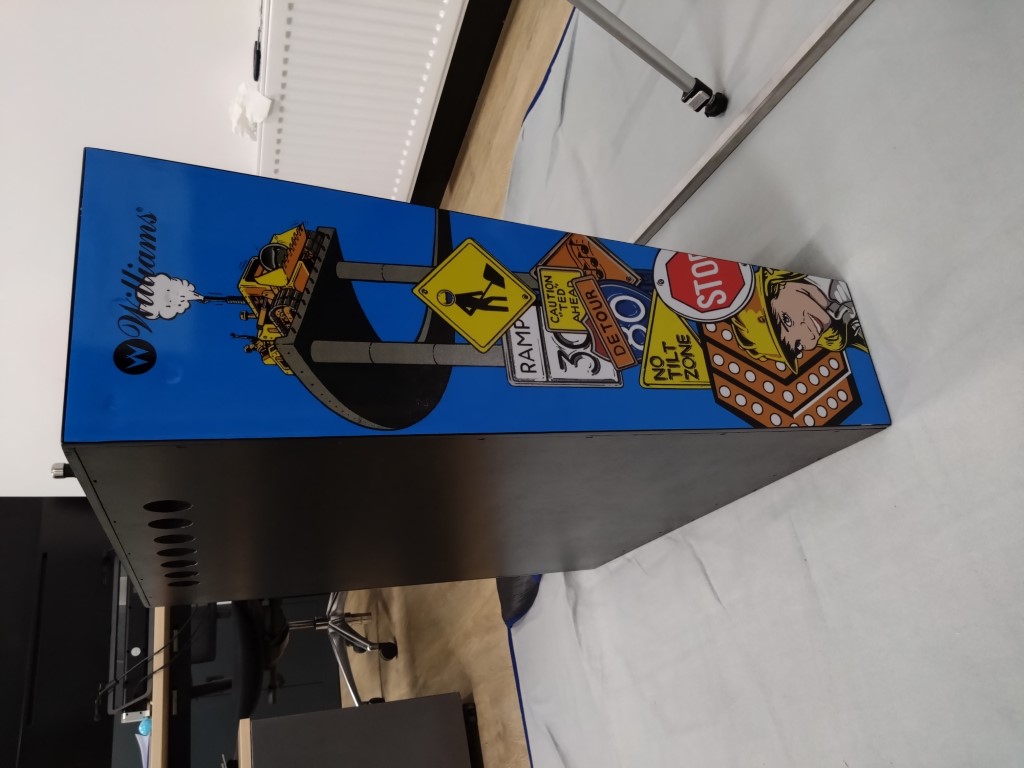
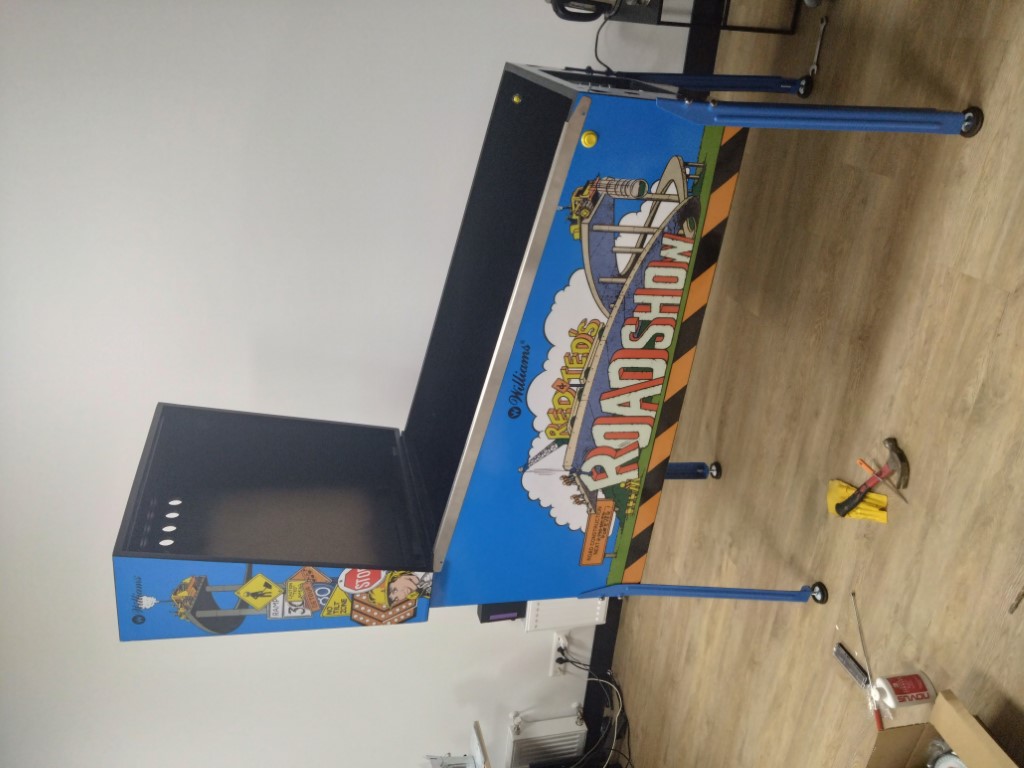
<h3 id="sanding-filling-painting-and-applying-new-decals">Sanding, filling, painting and applying new decals</h3>

<figure class="third ">
  
    
      <a href="/assets/images/roadshow/decals/DSC_1254_medium.JPG" title="Old cabinet bottom vs new">
          <img src="/assets/images/roadshow/decals/DSC_1254_thumb.JPG" alt="cabinet bottom" />
      </a>


      <a href="/assets/images/roadshow/decals/DSC_1251_medium.JPG" title="New cabinet bottom">
          <img src="/assets/images/roadshow/decals/DSC_1251_thumb.JPG" alt="cabinet bottom" />
      </a>


      <a href="/assets/images/roadshow/decals/DSC_1248_medium.JPG" title="Power switch cutout">
          <img src="/assets/images/roadshow/decals/DSC_1248_thumb.JPG" alt="power switch" />
      </a>


      <a href="/assets/images/roadshow/decals/DSC_1133_medium.JPG" title="Our DIY paint booth">
          <img src="/assets/images/roadshow/decals/DSC_1133_thumb.JPG" alt="homemade paint booth" />
      </a>


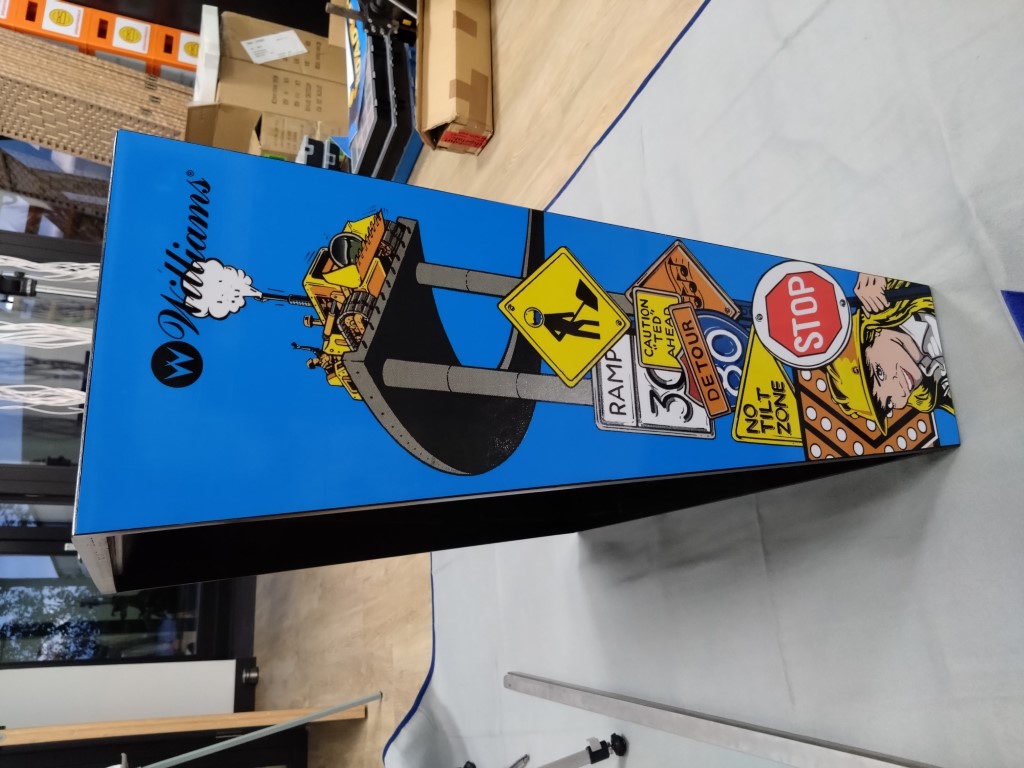
      <a href="/assets/images/roadshow/decals/DSC_1220_medium.JPG" title="Decal on left side of the backbox">
          <img src="/assets/images/roadshow/decals/DSC_1220_thumb.JPG" alt="backbox left" />
      </a>


      <a href="/assets/images/roadshow/decals/DSC_1221_medium.JPG" title="Decal on right side of the backbox">
          <img src="/assets/images/roadshow/decals/DSC_1221_thumb.JPG" alt="backbox right" />
      </a>


      <a href="/assets/images/roadshow/decals/DSC_1222_medium.JPG" title="Painted cabinet">
          <img src="/assets/images/roadshow/decals/DSC_1222_thumb.JPG" alt="painted cabinet" />
      </a>


      <a href="/assets/images/roadshow/decals/DSC_1243_medium.JPG" title="Side decal on cabinet installed">
          <img src="/assets/images/roadshow/decals/DSC_1243_thumb.JPG" alt="cabinet with decal" />
      </a>


      <a href="/assets/images/roadshow/decals/DSC_1275_medium.JPG" title="Back on its own legs for the first time">
          <img src="/assets/images/roadshow/decals/DSC_1275_thumb.JPG" alt="pinball cabinet" />
      </a>


    <figcaption>New decals installed
</figcaption>
  
</figure>

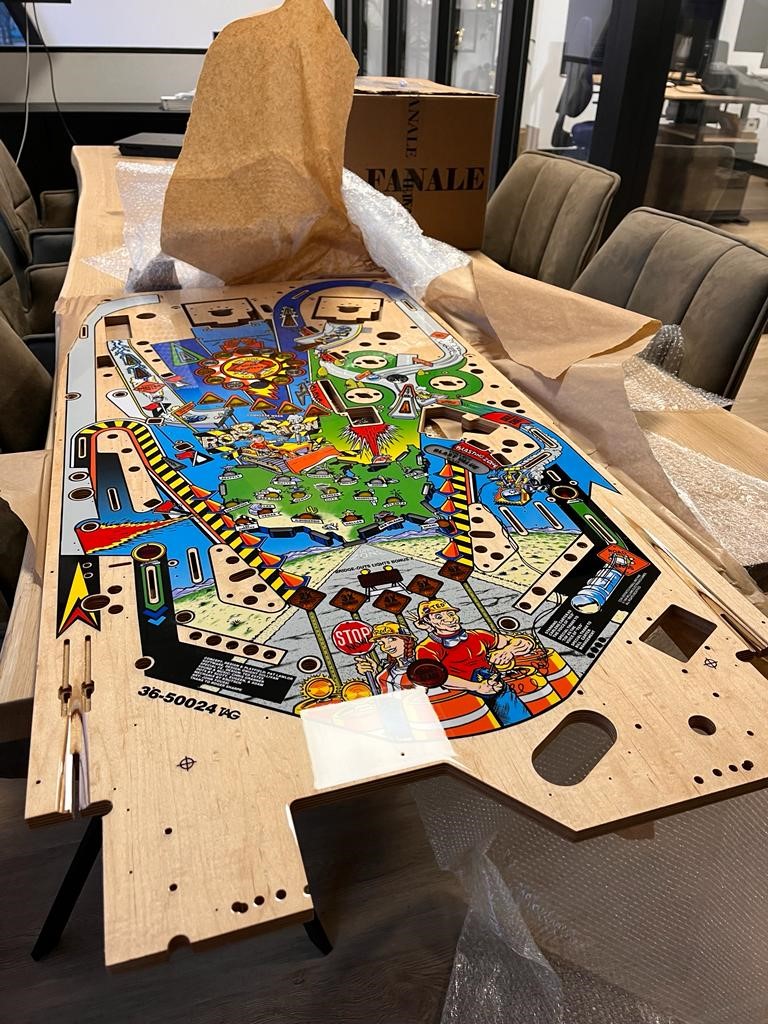
<h2 id="restoring-the-playfield"><del>Restoring</del> the playfield</h2>

<h3 id="biting-the-bullet-a-new-playfield">Biting the bullet: a new playfield</h3>

<p>While the original playfield wasn’t <em>that</em> bad, it did require some work. And we figured, we already went this far restoring it, why not treat it to a new playfield as well?</p>

<p>Restoring a playfield is a lot of effort and prep if you want to clearcoat it as well. Reselling the old playfield and buying
a new one is probably just as expensive as repairing and clearcoating the old one.</p>

<p>Reproductions are being made
<a href="https://www.buthamburg.de/de/spielflaechen/50024-road-show-repro-spielflaeche">by Buthamburg</a>, but they were out of stock.</p>

<p>When one came for sale on a third-party reseller we of course had to grab it.</p>

<h3 id="cleaning-the-wiring-harness">Cleaning the wiring harness</h3>

<h3 id="redoing-the-under-ramp-decals">Redoing the under-ramp decals</h3>

<h3 id="repopulating-the-playfield">Repopulating the playfield</h3>

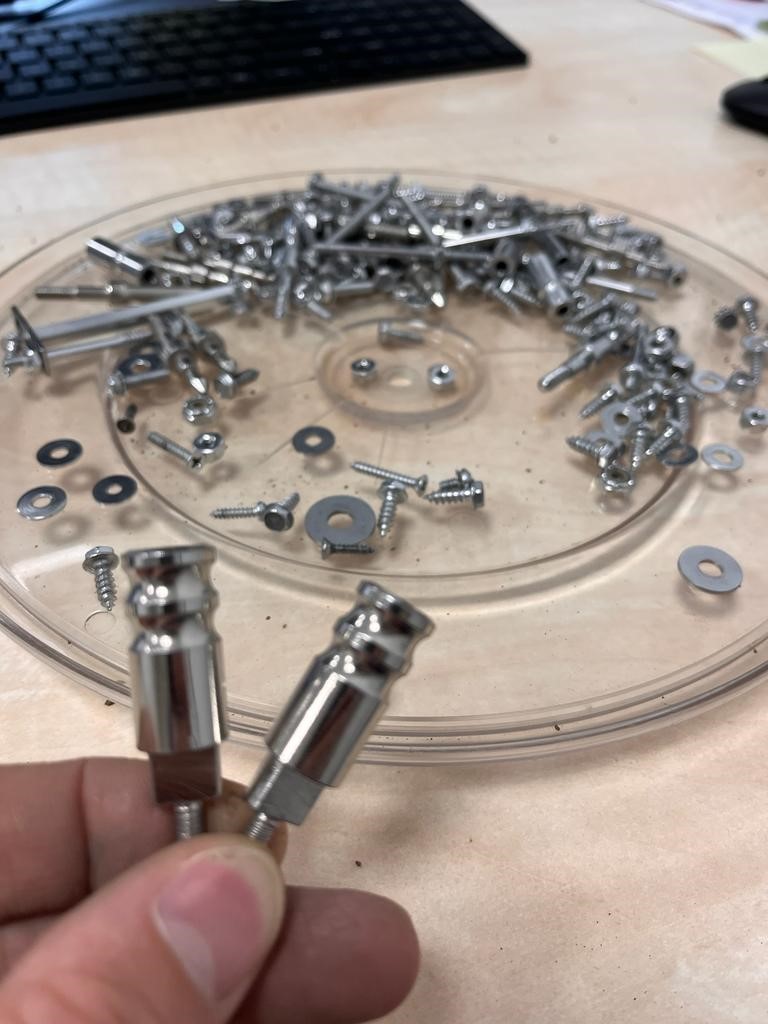
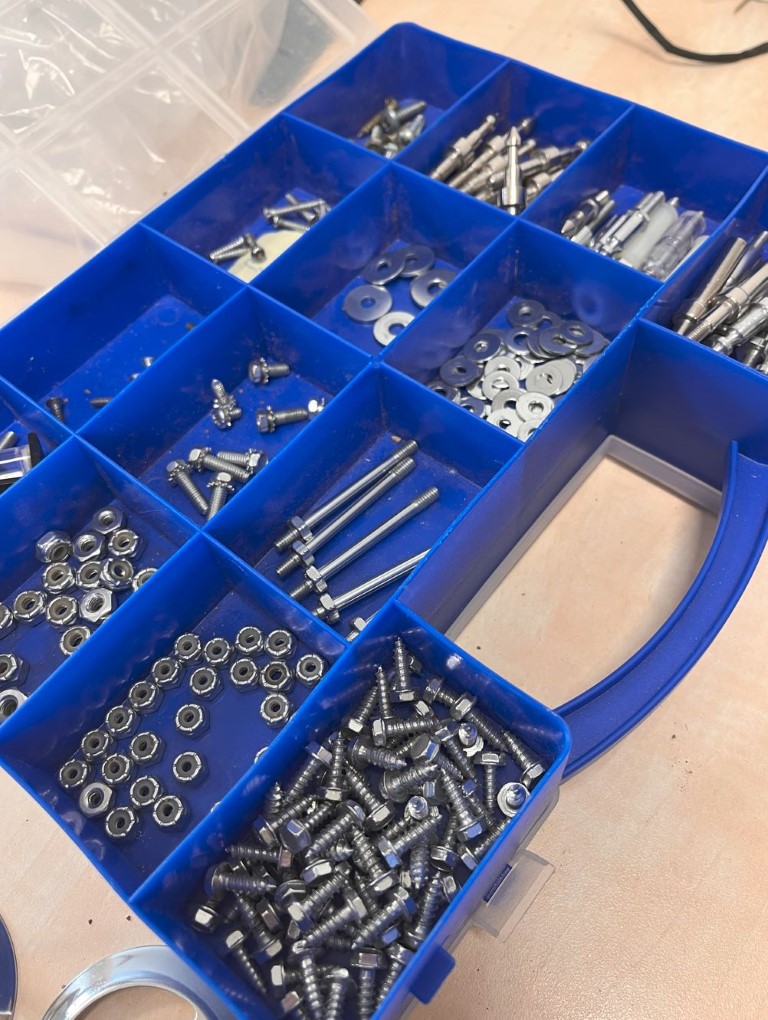
<p>Most of the metal bits and screws have spent a few days in the tumbler and are super shiny again.</p>

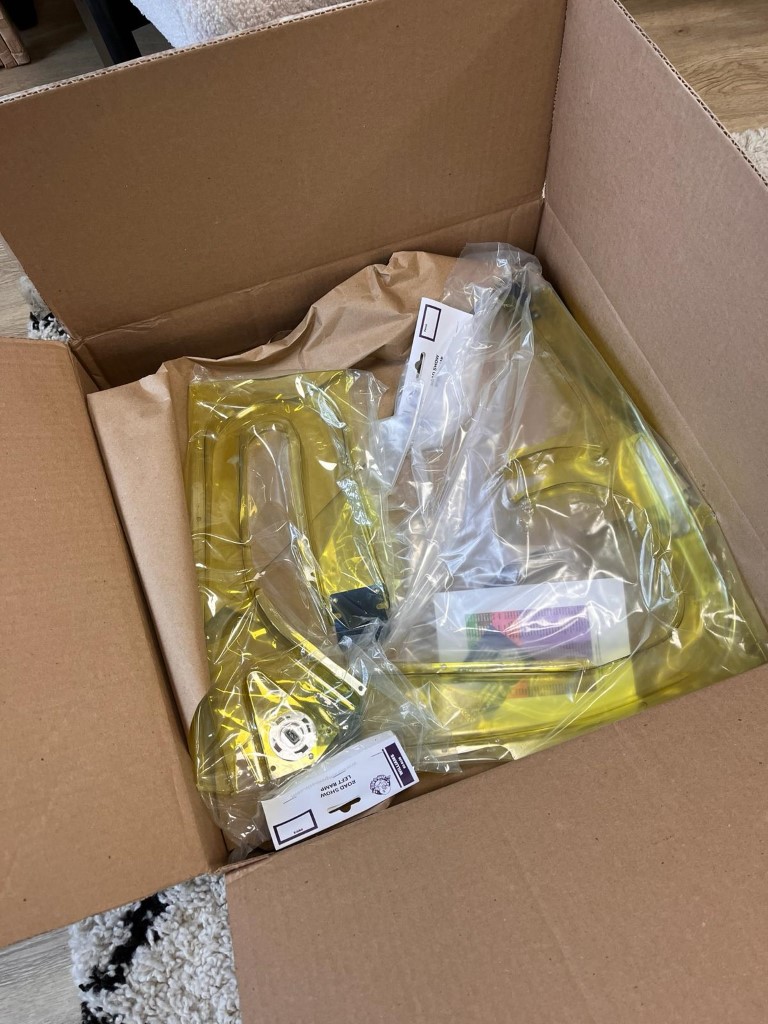
<p>Ramps have been replaced with brand-new reproduction ones <a href="https://rampomatic.com/">from Ramp-o-matic</a>.</p>

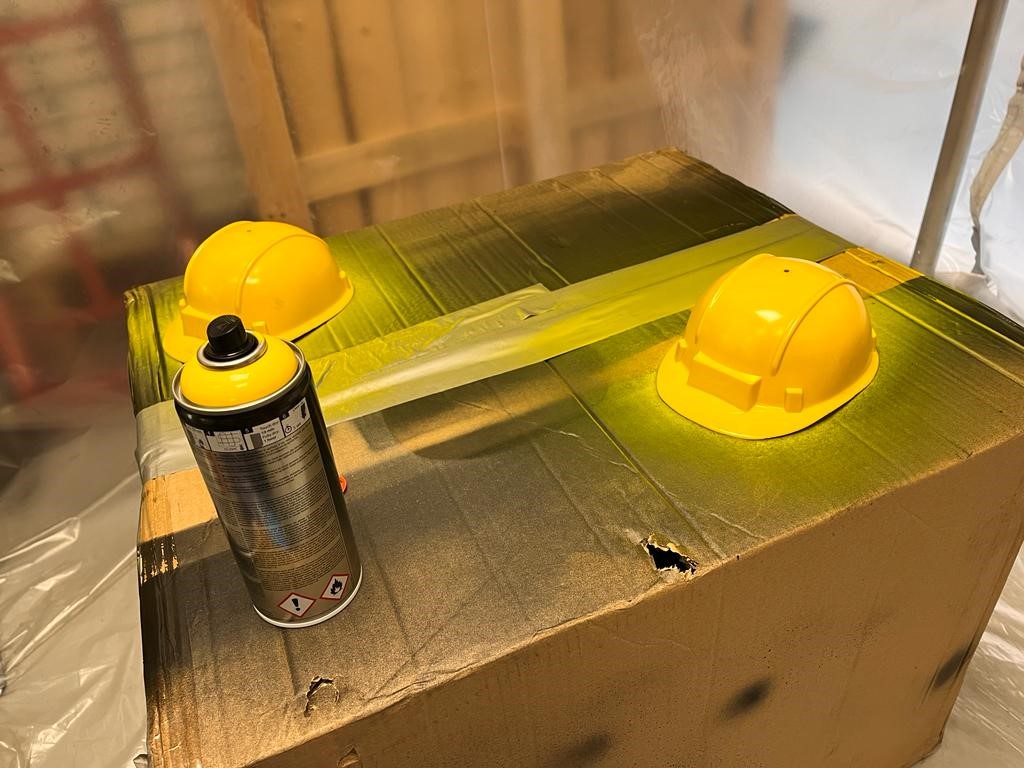
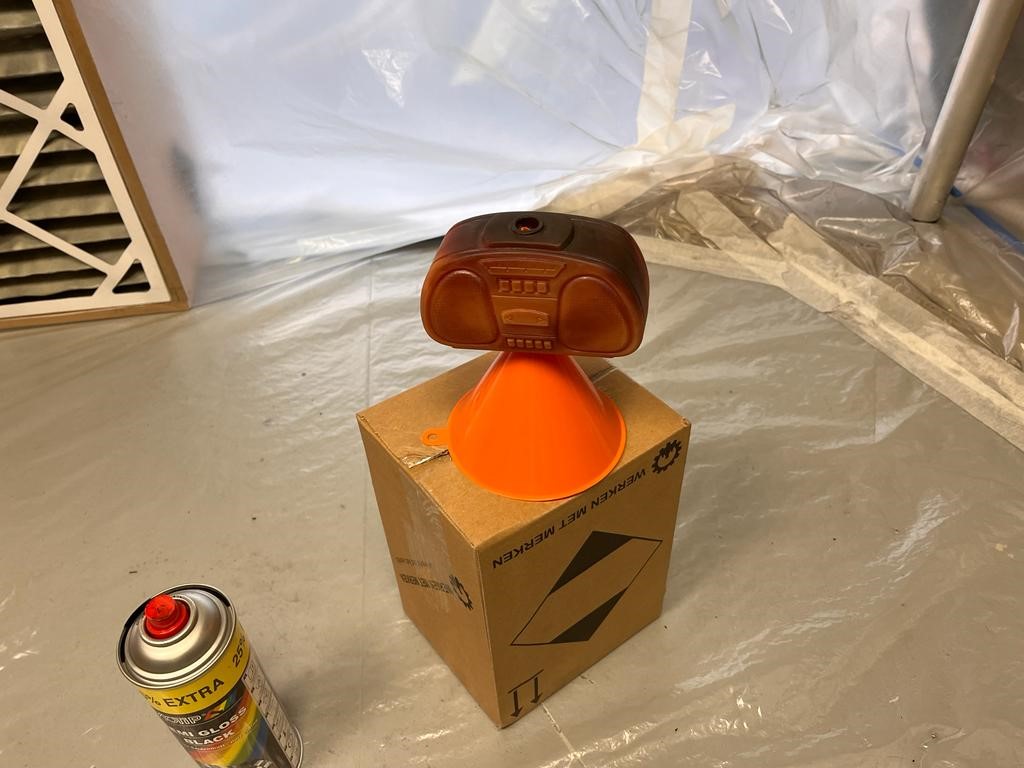
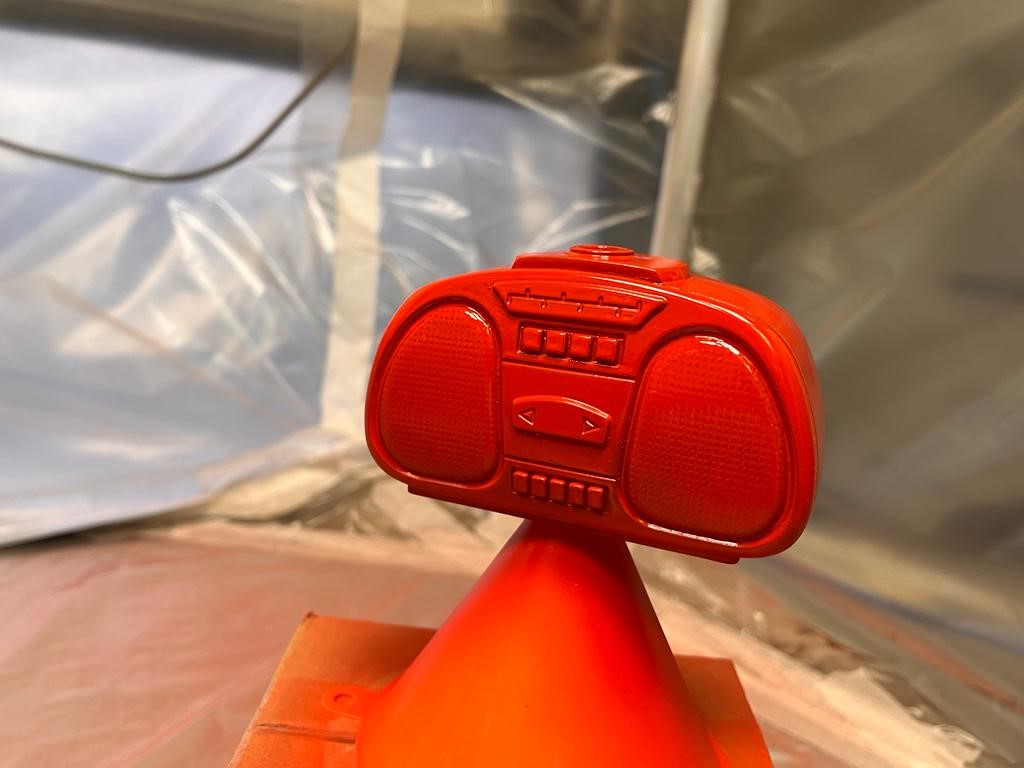
<p>The radio, bulldozer and Red &amp; Ted’s hardhats have been spray-painted.</p>

<figure class="third ">
  
    
      <a href="/assets/images/roadshow/repopulate/helmet_medium.jpg" title="Spraying the helmets">
          <img src="/assets/images/roadshow/repopulate/helmet_thumb.jpg" alt="spraying helmets" />
      </a>


      <a href="/assets/images/roadshow/repopulate/radio_before_medium.jpg" title="Radio before">
          <img src="/assets/images/roadshow/repopulate/radio_before_thumb.jpg" alt="radio before" />
      </a>


      <a href="/assets/images/roadshow/repopulate/radio_medium.jpg" title="Radio after">
          <img src="/assets/images/roadshow/repopulate/radio_thumb.jpg" alt="radio after" />
      </a>


      <a href="/assets/images/roadshow/repopulate/ramps_medium.jpg" title="New ramps">
          <img src="/assets/images/roadshow/repopulate/ramps_thumb.jpg" alt="new ramps" />
      </a>


      <a href="/assets/images/roadshow/repopulate/playfield_medium.jpg" title="New playfield">
          <img src="/assets/images/roadshow/repopulate/playfield_thumb.jpg" alt="new playfield" />
      </a>


      <a href="/assets/images/roadshow/repopulate/tumbler_medium.jpg" title="Posts and various metal parts after being in the tumbler">
          <img src="/assets/images/roadshow/repopulate/tumbler_thumb.jpg" alt="tumbler results" />
      </a>


      <a href="/assets/images/roadshow/repopulate/tumbler2_medium.jpg" title="Various metal parts after being in the tumbler, ready to be installed">
          <img src="/assets/images/roadshow/repopulate/tumbler2_thumb.jpg" alt="tumbler results" />
      </a>


      <a href="/assets/images/roadshow/repopulate/DSC_2022_medium.JPG" title="Playfield getting repopulated">
          <img src="/assets/images/roadshow/repopulate/DSC_2022_thumb.JPG" alt="playfield being repopulated" />
      </a>


    <figcaption>Playfield getting repopulated
</figcaption>
  
</figure>

<h3 id="miscellaneous-parts-that-have-been-replaced">Miscellaneous parts that have been replaced</h3>

<ul>
  <li>Lockdown bar receiver</li>
  <li>Flipper buttons, as they were the wrong color</li>
  <li>Start and buy-in buttons</li>
  <li>Shooter rod assemblies (they were mismatched and missing parts)</li>
  <li>Side rails</li>
</ul>

<h3 id="things-left-to-do">Things left to do:</h3>

<ul>
  <li>Decals on the apron</li>
  <li>Respray Williams-logo speaker grilles</li>
  <li>Silkscreen warning text on the backbox</li>
  <li>Various warning and information stickers on the inside of the cabinet</li>
  <li>Various small electronic issues, such as switches that register intermittently</li>
</ul>

<h2 id="final-result--conclusion">Final result &amp; conclusion</h2>

<p>While there are still some things left to do, here are some videos of the machine in action:</p>

<iframe width="560" height="315" src="https://www.youtube.com/embed/videoseries?si=jwvYUO6t2rvHZmdD&amp;list=PLZhL9eC6p4-izYtxnKL_WYnNGqC_afg2o" title="YouTube video player" frameborder="0" allow="accelerometer; autoplay; clipboard-write; encrypted-media; gyroscope; picture-in-picture; web-share" referrerpolicy="strict-origin-when-cross-origin" allowfullscreen=""></iframe>

<p><br />
This machine definitely exercised and tested all of our skills in the categories of woodworking,
painting, electronics, metalworking (and patience). And in the end it probably would’ve been a lot more cost-effective to have bought a better example of one these machines, not even accounting for the enormous amount of time spent on it.</p>

<p>But time and money are somewhat irrelevant when it’s a hobby, and you’re having fun. And now we have a machine with a
“story”, that looks and plays great, and will probably never leave the collection. This is sort of our <em>pièce de resistance</em>, if you will.</p>

<p><em>Next project: Williams F-14 Tomcat</em></p>]]></content><author><name>Koen Reus</name><email>koen+website@koenreus.com</email></author><category term="pinball" /><category term="pinball" /><category term="roadshow" /><category term="williams" /><category term="restoration" /><summary type="html"><![CDATA[In 2020 or so, my pinball-restoration-mate Ruud and I acquired this 1994 Williams Roadshow pinball machine in a very rough and non-working condition. It’s easy to underestimate the amount of work that will go into restoring such a machine when you’re doing a quick inspection at the sellers house, but with this one we were really in for a treat (in a negative sense).]]></summary></entry><entry><title type="html">Extracting a site from multisite into a standalone WordPress site</title><link href="https://koenreus.com/wordpress/extracting-multisite-site/" rel="alternate" type="text/html" title="Extracting a site from multisite into a standalone WordPress site" /><published>2024-03-23T16:58:48+00:00</published><updated>2024-03-23T16:58:48+00:00</updated><id>https://koenreus.com/wordpress/extracting-multisite-site</id><content type="html" xml:base="https://koenreus.com/wordpress/extracting-multisite-site/"><![CDATA[<p>A few years ago I moved all standalone WordPress sites of my customers into a single WordPress multisite installation on my own VPS. This was all working perfectly fine, and made updating and maintaining the sites a breeze. But the Ubuntu installation that the VPS was running on became outdated, and updating it to a recent version gave all sorts of trouble. Apart from that, some other issues arose with the server, causing issues with DNS records and e-mail delivery.</p>

<p>After some consideration, I figured I didn’t really need the VPS anymore, and a reseller hosting plan would be sufficient and a lot more cost-effective. I also wouldn’t have to worry about maintaining the server anymore.</p>

<p>I quickly ran into issues trying to move the multisite environment to the reseller hosting package though. For one, it wasn’t possible to create e-mail accounts for domains added as an alias. On the VPS I had the customer domains set as an alias for the main multisite domain and mapped them within WordPress to their respective sites. But they could still have an e-mail address or forwarder with their own domain name.</p>

<p>I decided to break things apart again and give every customer their own account within the hosting package, and make their sites standalone WordPress installs again. But as you might expect, taking a site out of the multisite and converting it to a site that can stand on its own feet could be a bit tricky.</p>

<h2 id="first-failed-approach-using-wordpress-import-and-export">First (failed) approach: Using WordPress Import and Export</h2>

<p>I found a guide by <a href="https://www.cloudways.com/blog/wordpress-multisite-to-single-site/">Cloudways</a> that took the approach of zipping the plugins and themes folders from wp-content, and exporting the site data using the built-in WordPress exporter. Then to set up a new WordPress site on the destination, extract the ZIP files, and import the XML. This gave all sorts of trouble though, and wasn’t really a 1-on-1 copy of the old site, with all kinds of stuff missing. The import gave a 500-error halfway through and the site didn’t work at all.</p>

<h2 id="why-dont-u-just-use-a-migration-plugin">WhY DoN’t U JuSt UsE a MiGrAtIoN PluGiN?</h2>

<p>Some of you might be screaming, why don’t you just use a migration plugin?? And that <em>might</em> work(?). But I must admit I have never used one of those plugins. When you know how to migrate a site the “old school” way, by simply copying the files and database from the old to the new location, you wonder, how can a plugin <em>possibly</em> do a good job of this? I’m a firm believer that things like migration, security, backups and optimization should be done at a lower level, not at the application (WordPress) level.</p>

<h2 id="copying-the-entire-multisite-install-to-the-new-location">Copying the entire multisite install to the new location</h2>

<p>The approach taken by this <a href="https://pressable.com/knowledgebase/extracting-a-single-site-from-a-multisite/">Pressable</a> guide was to copy the entire multisite install to the new location, to then remove all the unnecessary stuff, and to then turn it back into a single-site install. I must admit that I was skeptical of this approach at first, but after some testing, I think this is the way to go! That article is a bit barebones though, and I have some useful “in-the-field” tips and tricks to add. <em>Let’s get started.</em></p>

<h2 id="prerequisites">Prerequisites</h2>

<h3 id="source-host">Source host</h3>

<ul>
  <li>FTP access, SSH is not required but useful for zipping the site content</li>
  <li>Access to database manager like PHPMyAdmin</li>
</ul>

<h3 id="destination-host">Destination host</h3>

<ul>
  <li>FTP access</li>
  <li>SSH access</li>
  <li>wp-cli</li>
  <li>Access to database manager like PHPMyAdmin</li>
</ul>

<h2 id="preparing-the-multisite-for-migration">Preparing the multisite for migration</h2>

<p>Start by zipping the contents of the entire <code class="language-plaintext highlighter-rouge">public_html</code> directory on the <strong>source</strong> host. From the <strong>parent</strong> directory, run the following command in SSH:</p>

<p><code class="language-plaintext highlighter-rouge">zip -r export.zip public_html</code></p>

<p>Then download this zip file to your computer and remove any unnecessary stuff from it to lower the file size (like the W3 Total Cache <code class="language-plaintext highlighter-rouge">cache</code> folder in <code class="language-plaintext highlighter-rouge">wp-content</code>). In software like 7-zip or WinRAR you can simply hit delete on those folders, and it will remove them from the archive.</p>

<p>Export the database through your hosting control panel or PHPMyAdmin. Enable compression if available as the file may otherwise be very large.</p>

<h2 id="preparing-the-destination">Preparing the destination</h2>

<p>Upload the “cleaned” zip file to the directory <strong>above</strong> the <code class="language-plaintext highlighter-rouge">public_html</code> directory on the <strong>destination</strong> host. Unpack it through SSH using the following command:</p>

<p><code class="language-plaintext highlighter-rouge">unzip export.zip</code></p>

<p>Create a new database and import the database export file.</p>

<h2 id="find-the-blog-id">Find the blog ID</h2>

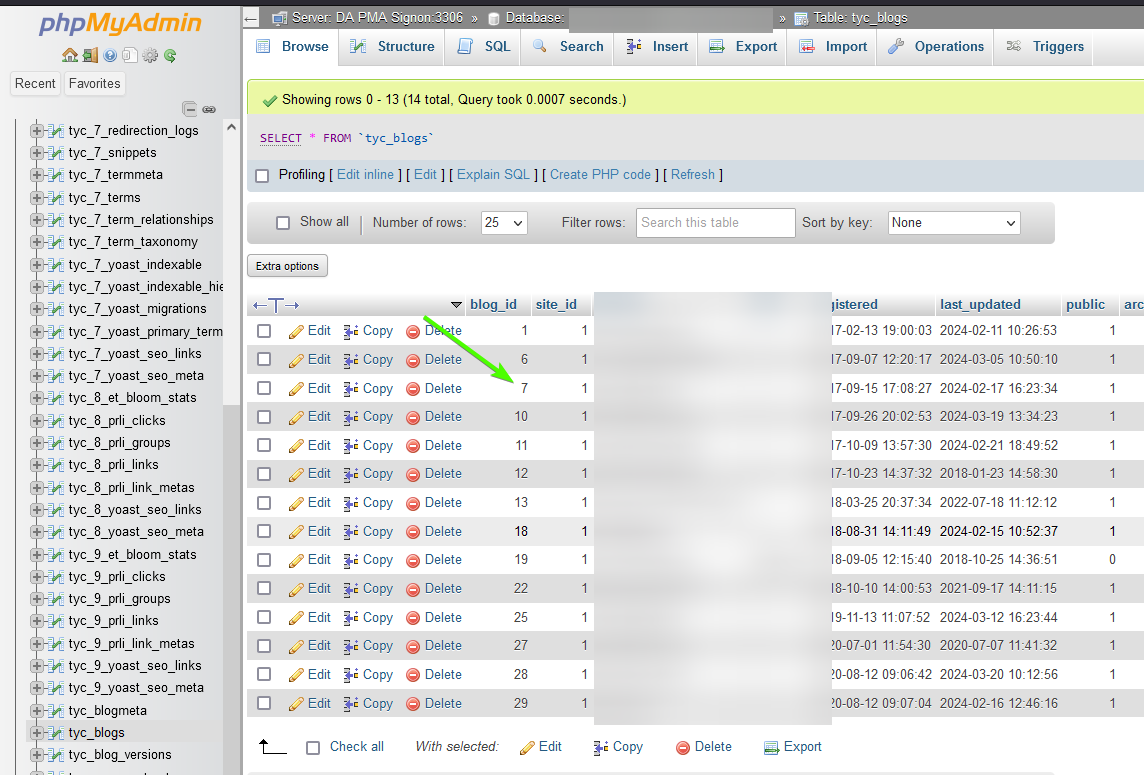
<p>In PHPMyAdmin on the <strong>destination</strong> host, navigate to the <code class="language-plaintext highlighter-rouge">{prefix}_blogs</code> table and determine the ID of the blog you want to import and note it down:</p>

<p><img src="/assets/images/find_blog_id.png" alt="Find the blog id" /></p>

<p>In the case of this article, we’re going to migrate the site with <strong>ID 7</strong>.</p>

<h2 id="modifying-the-database">Modifying the database</h2>

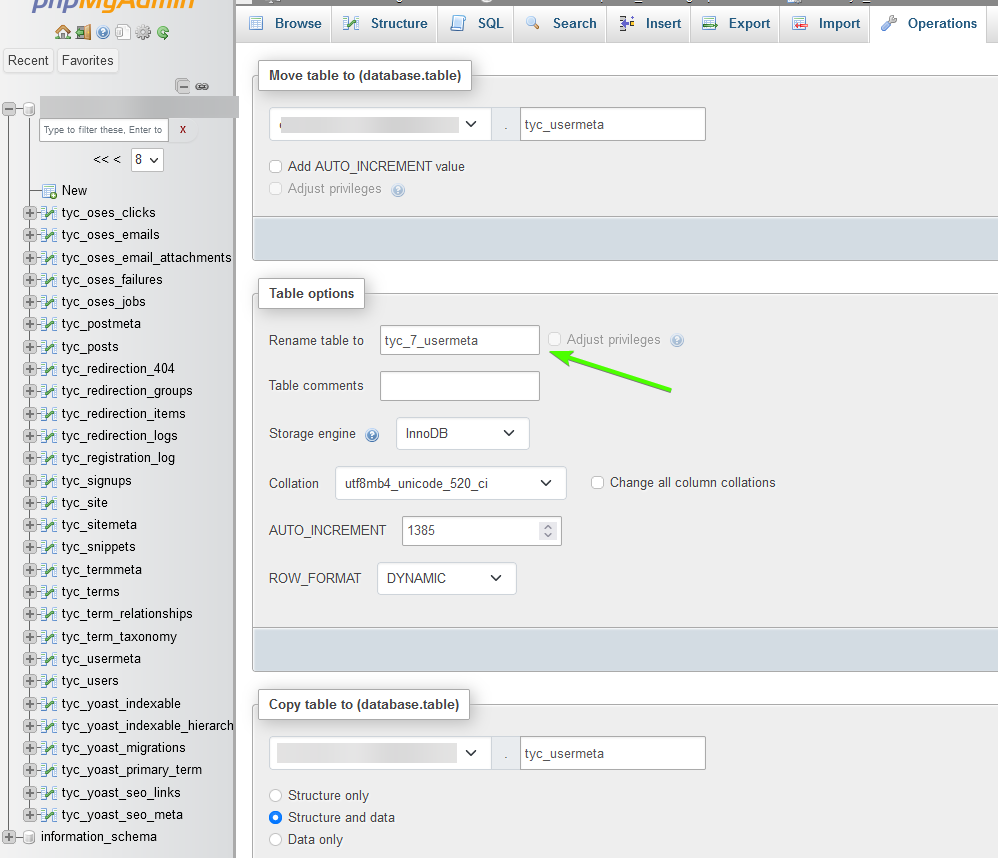
<p>All that is needed to make the database work for the single site install is to rename the <code class="language-plaintext highlighter-rouge">{prefix}_users</code> and <code class="language-plaintext highlighter-rouge">{prefix}_usermeta</code> tables.</p>

<p>Open both tables, and on the “Operations” tab, rename them to include the ID of the site:</p>

<p><img src="/assets/images/change_the_prefix.png" alt="Change the prefix" /></p>

<p>So in this case, <code class="language-plaintext highlighter-rouge">tyc_usermeta</code> to <code class="language-plaintext highlighter-rouge">tyc_7_usermeta</code> and <code class="language-plaintext highlighter-rouge">tyc_users</code> to <code class="language-plaintext highlighter-rouge">tyc_7_users</code>.</p>

<h3 id="cleaning-up-the-database">Cleaning up the database</h3>

<p>You can now delete (drop) all other tables and only keep the ones with the <code class="language-plaintext highlighter-rouge">tyc_7_</code> prefix. Again, make sure you do this on the <strong>destination</strong> PHPMyAdmin 😁 And you did make backups didn’t you??</p>

<p><img src="/assets/images/bill-oreilly-well-do-it-live.gif" alt="We'll do it live!!" /></p>

<h2 id="moving-the-media">Moving the media</h2>

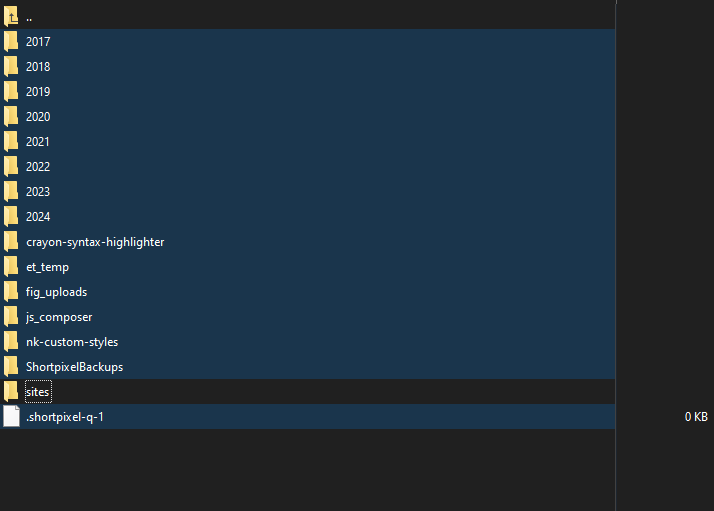
<p>Each site in the network has its own media folder within the <code class="language-plaintext highlighter-rouge">wp-content/uploads/sites </code>folder. What is in the root of the uploads folder is the media for the main site of the network.</p>

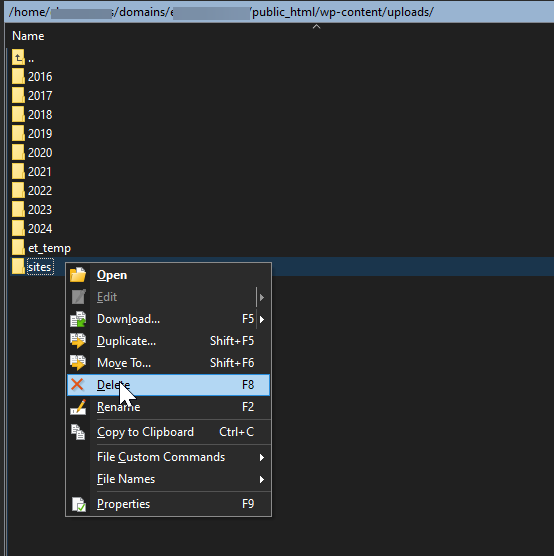
<p>Let’s start with some cleanup first. In your FTP program, navigate to the <code class="language-plaintext highlighter-rouge">wp-content/uploads</code> folder on the destination host and delete everything but the <code class="language-plaintext highlighter-rouge">sites</code> folder:</p>

<p><img src="/assets/images/not_the_sites_folder.png" alt="Delete everything but sites folder" /></p>

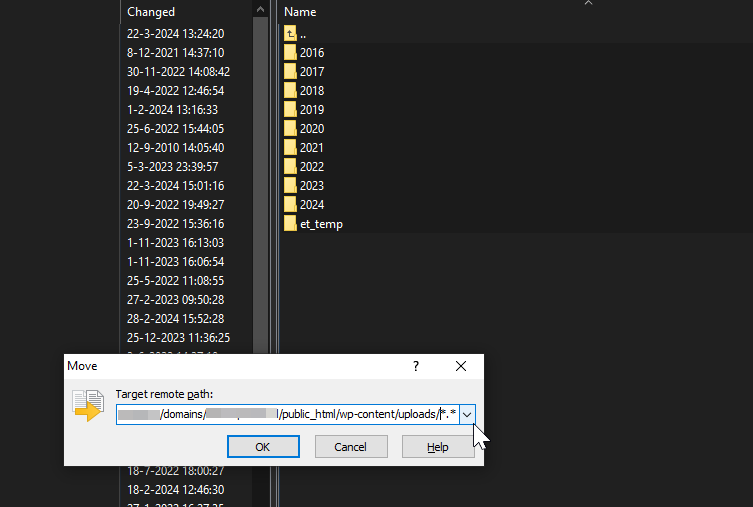
<p>Then, go into the <code class="language-plaintext highlighter-rouge">sites</code> folder and open the folder with the <strong>ID</strong> of your site. Move all the contents within to the root of the <code class="language-plaintext highlighter-rouge">uploads</code> folder.</p>

<p><img src="/assets/images/move_to_root.png" alt="Move everything to the root folder" /></p>

<p>You can now delete the <code class="language-plaintext highlighter-rouge">sites</code> folder as well:</p>

<p><img src="/assets/images/delete_sites_folder.png" alt="Delete the sites folder" /></p>

<h2 id="updating-wp-configphp">Updating wp-config.php</h2>

<p>We need to make some changes to the <code class="language-plaintext highlighter-rouge">wp-config.php</code> file in order for everything to work. First, update the database credentials to match those of your destination database.</p>

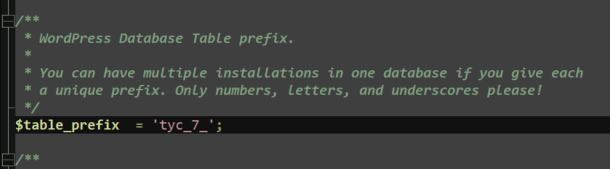
<p>Change the <code class="language-plaintext highlighter-rouge">$table_prefix</code> to include your site id:</p>

<p><img src="/assets/images/table_prefix.png" alt="Edit the table prefix" /></p>

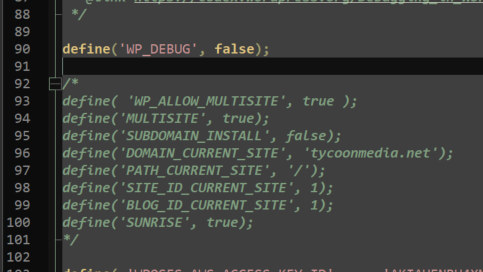
<p>Comment out or delete the multisite constants:</p>

<p><img src="/assets/images/multisite_constants.png" alt="Comment out the multisite constants" /></p>

<h2 id="updating-media-locations-in-the-database">Updating media locations in the database</h2>

<p>The site should now be -partially- working on the destination host. But references to the uploaded media in the database will be incorrect because we moved them. So we will need to update those.</p>

<p>Luckily wp-cli has a handy command that makes easy work of this: <code class="language-plaintext highlighter-rouge">wp search-replace</code></p>

<p>Open SSH and <code class="language-plaintext highlighter-rouge">cd</code> into the root directory of the site (so <code class="language-plaintext highlighter-rouge">public_html</code> in this case). Run the following command to search and replace all occurrences:</p>

<p>` wp search-replace ‘uploads/sites/7/’ ‘uploads/’ –precise –recurse-objects –all-tables`</p>

<p>(where you should obviously replace the 7 with the site ID that you’re working with)</p>

<p><img src="/assets/images/search_replace.png" alt="Search and replace" /></p>

<h2 id="bonus-updating-the-site-url">Bonus: Updating the site URL</h2>

<p>If you’re moving the site to a new URL you’ll need to update all references to that as well:</p>

<p><code class="language-plaintext highlighter-rouge">wp search-replace 'theoldurl.com/subfolder/' 'thenewurl.com/' --precise --recurse-objects --all-tables</code></p>

<p>I had actual domains mapped to my multisite install but in some cases the media was actually still pointing to the subfolder on the multisite root domain. In that case you can run the command from above as well to fix those.</p>

<p>Obviously change the URLs in the command to your specific situation. And make sure you have the trailing slash in both strings.</p>

<h2 id="bonus-2-previewing-the-site-on-the-new-location">Bonus 2: Previewing the site on the new location</h2>

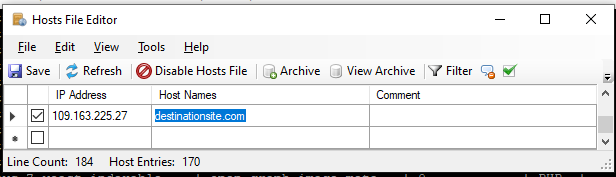
<p>To easily preview the site on the new location you can adjust the HOSTS file on your computer to point the domain to the new host. I use a convenient program for it called Hosts File Editor (what a descriptive name huh?).</p>

<p>Enter the IP address of the destination host and the domain name and hit save:</p>

<p><img src="/assets/images/hosts_file_editor.png" alt="Hosts file editor" /></p>

<p>Now when you open or refresh the site in your browser, it will be served from the new location (and you’ll probably be greeted by an SSL error which you can ignore for now). Now you can confirm everything works correctly and make any changes if necessary .</p>

<p>If everything is working on the destination, you can update the DNS of the domain and the migration will be seamless.</p>

<p>Don’t forget to remove or disable the entry within <strong>Hosts File Editor</strong> afterward.</p>

<h2 id="done">Done</h2>

<p>And that’s how you seamlessly migrate a site from within a multisite environment into a standalone WordPress install. Given the length of this article it might seem a bit daunting, but it is actually a pretty quick and easy process, and it has given me little trouble with the sites I have migrated so far.</p>]]></content><author><name>Koen Reus</name><email>koen+website@koenreus.com</email></author><category term="wordpress" /><category term="wordpress" /><category term="php" /><category term="migration" /><category term="multisite" /><summary type="html"><![CDATA[A few years ago I moved all standalone WordPress sites of my customers into a single WordPress multisite installation on my own VPS. This was all working perfectly fine, and made updating and maintaining the sites a breeze. But the Ubuntu installation that the VPS was running on became outdated, and updating it to a recent version gave all sorts of trouble. Apart from that, some other issues arose with the server, causing issues with DNS records and e-mail delivery.]]></summary></entry><entry><title type="html">Hooking into the WordPress Site Health screen</title><link href="https://koenreus.com/wordpress/hooking-into-site-health-screen/" rel="alternate" type="text/html" title="Hooking into the WordPress Site Health screen" /><published>2023-02-26T11:51:48+00:00</published><updated>2023-02-26T11:51:48+00:00</updated><id>https://koenreus.com/wordpress/hooking-into-site-health-screen</id><content type="html" xml:base="https://koenreus.com/wordpress/hooking-into-site-health-screen/"><![CDATA[<p>WordPress 5.2 gave us <a href="https://make.wordpress.org/core/2019/04/25/site-health-check-in-5-2/">the Site Health screen</a>, a convenient way for users to check on the vitals of their website. 
It performs some tests and also gives the option to copy all debug data to the clipboard for easy sharing.</p>

<p>However, four years later, very few plugin developers seem to utilize it. This is possibly due to the fact that documentation on it is very
limited and hard to find. This may lead you to think that it is hard to work with the Site Health screen, but in fact it is actually very 
easy to hook into it.</p>

<p>The <a href="https://twitter.com/KoenReus/status/1629487507598442497">Tweet</a> I recently wrote about this subject garnered a lot 
of response, which prompted me to write this more in-depth article.</p>

<h2 id="custom-tests">Custom tests</h2>

<p>To add a custom test we have to use the <code class="language-plaintext highlighter-rouge">site_status_tests</code> filter hook. There are two types of tests, direct tests and
asynchronous tests. Tests that take little time to execute can be executed directly. If a test takes more time to run,
its better to make it asynchronous.</p>

<h3 id="adding-a-direct-test">Adding a “direct” test</h3>

<figure class="highlight"><pre><code class="language-php" data-lang="php"><span class="k">function</span> <span class="n">hsce_add_mbstring_test</span><span class="p">(</span><span class="nv">$tests</span><span class="p">){</span>
  <span class="k">return</span> <span class="nb">array_merge_recursive</span><span class="p">(</span><span class="nv">$tests</span><span class="p">,</span> <span class="p">[</span>
    <span class="s1">'direct'</span> <span class="o">=&gt;</span> <span class="p">[</span>
      <span class="s1">'hsce_custom_test'</span> <span class="o">=&gt;</span> <span class="p">[</span>
        <span class="s1">'label'</span> <span class="o">=&gt;</span> <span class="nf">__</span><span class="p">(</span><span class="s1">'My custom plugin test'</span><span class="p">),</span>
        <span class="s1">'test'</span> <span class="o">=&gt;</span> <span class="s1">'hsce_do_test'</span><span class="p">,</span>
        <span class="s1">'skip_cron'</span> <span class="o">=&gt;</span> <span class="kc">false</span><span class="p">,</span> <span class="c1">//Do not run this test on cron</span>
      <span class="p">]</span>
    <span class="p">]</span>
  <span class="p">]);</span>
<span class="p">}</span>
<span class="nf">add_filter</span><span class="p">(</span><span class="s1">'site_status_tests'</span><span class="p">,</span> <span class="s1">'hsce_add_mbstring_test'</span><span class="p">);</span></code></pre></figure>

<p>The <code class="language-plaintext highlighter-rouge">'test' =&gt; 'hsce_do_test',</code> key points to a function (the value should be a function callback). That function 
should perform the test and return the results. Let’s create a testing function that checks if the <code class="language-plaintext highlighter-rouge">mbstring</code> PHP extension is
loaded and the <code class="language-plaintext highlighter-rouge">mb_strimwidth()</code> function is available (<em>…disregarding the fact that one of the built-in tests already
checks if mbstring is enabled</em>):</p>

<figure class="highlight"><pre><code class="language-php" data-lang="php"><span class="k">function</span> <span class="n">hsce_do_test</span><span class="p">()</span> <span class="p">{</span>
  <span class="nv">$mbstring_enabled</span> <span class="o">=</span> <span class="nb">extension_loaded</span><span class="p">(</span><span class="s1">'mbstring'</span><span class="p">)</span> <span class="o">&amp;&amp;</span> <span class="nb">function_exists</span><span class="p">(</span><span class="s1">'mb_strimwidth'</span><span class="p">);</span>
  <span class="nv">$status</span> <span class="o">=</span> <span class="nv">$mbstring_enabled</span> <span class="o">?</span> <span class="s1">'good'</span> <span class="o">:</span> <span class="s1">'recommended'</span><span class="p">;</span> <span class="c1">//Also available: critical</span>
  <span class="nv">$label</span> <span class="o">=</span> <span class="nv">$mbstring_enabled</span> <span class="o">?</span> <span class="nf">__</span><span class="p">(</span><span class="s1">'mbstring is enabled'</span><span class="p">)</span> <span class="o">:</span> <span class="nf">__</span><span class="p">(</span><span class="s1">'mbstring is not enabled'</span><span class="p">);</span>
  <span class="nv">$description</span> <span class="o">=</span> <span class="nb">sprintf</span><span class="p">(</span><span class="s1">'&lt;p&gt;%s&lt;/p&gt;'</span><span class="p">,</span> <span class="nv">$mbstring_enabled</span> <span class="o">?</span>
      <span class="nf">__</span><span class="p">(</span><span class="s1">'Description when test successful'</span><span class="p">)</span> <span class="o">:</span>
      <span class="nf">__</span><span class="p">(</span><span class="s1">'Description when test failed'</span><span class="p">)</span>
  <span class="p">);</span>
  
  <span class="k">return</span> <span class="p">[</span>
      <span class="s1">'label'</span> <span class="o">=&gt;</span> <span class="nv">$label</span><span class="p">,</span>
      <span class="s1">'status'</span> <span class="o">=&gt;</span> <span class="nv">$status</span><span class="p">,</span>
      <span class="s1">'badge'</span> <span class="o">=&gt;</span> <span class="p">[</span>
          <span class="s1">'label'</span> <span class="o">=&gt;</span> <span class="nf">__</span><span class="p">(</span><span class="s1">'My Custom label'</span><span class="p">),</span>
          <span class="s1">'color'</span> <span class="o">=&gt;</span> <span class="s1">'blue'</span><span class="p">,</span> <span class="c1">//Choice of blue, green, red, orange, purple or gray</span>
      <span class="p">],</span>
      <span class="s1">'description'</span> <span class="o">=&gt;</span> <span class="nv">$description</span><span class="p">,</span>
      <span class="s1">'actions'</span> <span class="o">=&gt;</span> <span class="nb">sprintf</span><span class="p">(</span><span class="s1">'&lt;a href="#"&gt;%s&lt;/a&gt;'</span><span class="p">,</span> <span class="nf">__</span><span class="p">(</span><span class="s1">'Check the plugin log'</span><span class="p">)),</span> <span class="c1">//Link or button (HTML) where the user can find additional info</span>
      <span class="s1">'test'</span> <span class="o">=&gt;</span> <span class="s1">'hsce_custom_test'</span>
  <span class="p">];</span>
<span class="p">}</span></code></pre></figure>

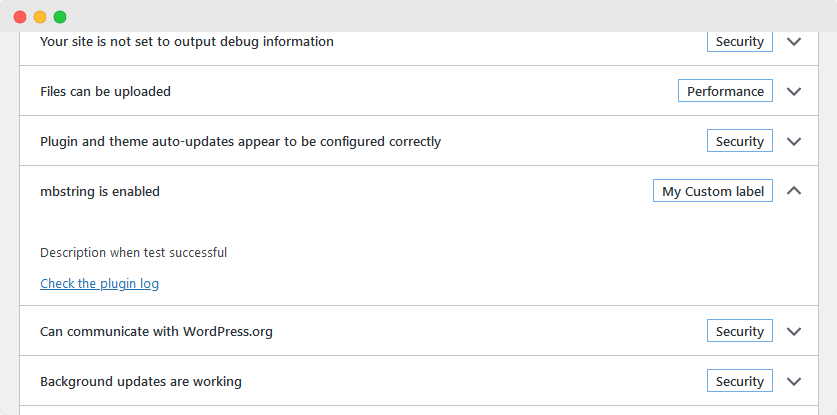
<p>The result should look like this:</p>

<p><img src="https://koenreus.com/assets/images/screely-1677507546482.png" alt="screenshot" /></p>

<h3 id="adding-an-asynchronous-test">Adding an asynchronous test</h3>

<p>Adding an asynchronous test is a bit more involved. With asynchronous tests, WordPress will make a request to an Ajax 
endpoint to run the test, so it won’t slow down the page.</p>

<p>Asynchronous tests are registered like this:</p>

<figure class="highlight"><pre><code class="language-php" data-lang="php"><span class="k">function</span> <span class="n">hsce_add_async_test</span><span class="p">(</span><span class="nv">$tests</span><span class="p">){</span>
    <span class="k">return</span> <span class="nb">array_merge_recursive</span><span class="p">(</span><span class="nv">$tests</span><span class="p">,</span> <span class="p">[</span>
        <span class="s1">'async'</span> <span class="o">=&gt;</span> <span class="p">[</span>
            <span class="s1">'hsce_custom_async_test'</span> <span class="o">=&gt;</span> <span class="p">[</span>
                <span class="s1">'label'</span> <span class="o">=&gt;</span> <span class="nf">__</span><span class="p">(</span><span class="s1">'My custom async test'</span><span class="p">),</span>
                <span class="s1">'test'</span> <span class="o">=&gt;</span> <span class="s1">'hsce-async-test'</span><span class="p">,</span>
                <span class="s1">'skip_cron'</span> <span class="o">=&gt;</span> <span class="kc">false</span><span class="p">,</span>
                <span class="s1">'has_rest'</span> <span class="o">=&gt;</span> <span class="kc">false</span><span class="p">,</span>
                <span class="s1">'async_direct_test'</span> <span class="o">=&gt;</span> <span class="s1">'hsce_do_async_test'</span><span class="p">,</span>
            <span class="p">]</span>
        <span class="p">]</span>
    <span class="p">]);</span>
<span class="p">}</span>
<span class="nf">add_filter</span><span class="p">(</span><span class="s1">'site_status_tests'</span><span class="p">,</span> <span class="s1">'hsce_add_async_test'</span><span class="p">);</span></code></pre></figure>

<p>In this case the <code class="language-plaintext highlighter-rouge">'test' =&gt; 'hsce-async-test',</code> does not expect a function callback, but a string with the name of your
Ajax callback function. Note that you should use <strong>dashes and not underscores</strong>.</p>

<p><code class="language-plaintext highlighter-rouge">'async_direct_test' =&gt; 'hsce_do_async_test',</code> points to the test function directly and <em>should</em> be a function callback. 
This is used when the test is ran in the background.</p>

<p>The definition of the test itself is the same as in the <a href="#adding-a-direct-test">Adding a “direct”</a> test section above.</p>

<p>All we have to do is register an Ajax endpoint for it:</p>

<figure class="highlight"><pre><code class="language-php" data-lang="php"><span class="k">function</span> <span class="n">hsce_ajax_async_test</span><span class="p">(){</span>
    <span class="k">if</span><span class="p">(</span><span class="o">!</span><span class="nf">wp_verify_nonce</span><span class="p">(</span><span class="nv">$_REQUEST</span><span class="p">[</span><span class="s1">'_wpnonce'</span><span class="p">],</span> <span class="s1">'health-check-site-status'</span><span class="p">)){</span>
        <span class="nf">wp_send_json_error</span><span class="p">(</span><span class="nf">__</span><span class="p">(</span><span class="s1">'Invalid nonce'</span><span class="p">));</span>
    <span class="p">}</span>
    <span class="nf">wp_send_json_success</span><span class="p">(</span><span class="nf">hsce_do_async_test</span><span class="p">());</span>
<span class="p">}</span>
<span class="nf">add_action</span><span class="p">(</span><span class="s1">'wp_ajax_health-check-hsce-async-test'</span><span class="p">,</span> <span class="s1">'hsce_ajax_async_test'</span><span class="p">);</span></code></pre></figure>

<p>Note that WordPress also adds the <code class="language-plaintext highlighter-rouge">health-check-</code> prefix to the Ajax action name before your test name. This had me
scratching my head for a while when my test wouldn’t get triggered.</p>

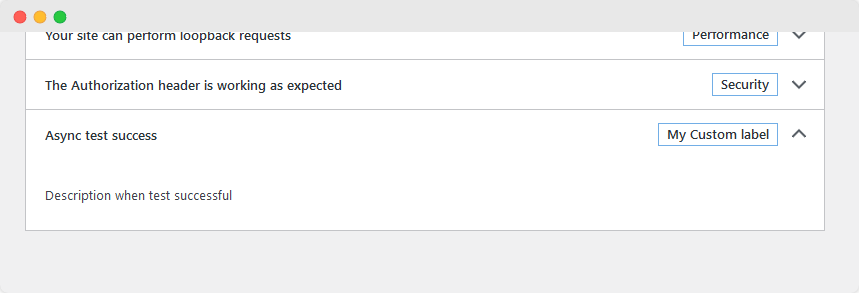
<p>After registering the Ajax endpoint, your test should show up at the bottom of the tests list:</p>

<p><img src="https://koenreus.com/assets/images/screely-1677507872539.png" alt="screenshot" /></p>

<h2 id="adding-a-section-to-info-tab">Adding a section to Info tab</h2>

<p>Adding a custom section to the Info tab is really easy. You can do this by adding a function to the <code class="language-plaintext highlighter-rouge">debug_information</code>
action hook like so:</p>

<figure class="highlight"><pre><code class="language-php" data-lang="php"><span class="k">function</span> <span class="n">hsce_add_debug_info</span><span class="p">(</span> <span class="nv">$debug_info</span> <span class="p">)</span> <span class="p">{</span>
    <span class="nv">$debug_info</span><span class="p">[</span><span class="s1">'my-plugin-slug'</span><span class="p">]</span> <span class="o">=</span> <span class="p">[</span>
        <span class="s1">'label'</span>    <span class="o">=&gt;</span> <span class="nf">__</span><span class="p">(</span> <span class="s1">'My Plugin Custom Info Section'</span><span class="p">),</span>
        <span class="s1">'fields'</span>   <span class="o">=&gt;</span> <span class="p">[</span>
            <span class="s1">'mysetting'</span> <span class="o">=&gt;</span> <span class="p">[</span>
                <span class="s1">'label'</span>    <span class="o">=&gt;</span> <span class="nf">__</span><span class="p">(</span> <span class="s1">'My custom setting'</span><span class="p">),</span>
                <span class="s1">'value'</span>   <span class="o">=&gt;</span> <span class="nf">get_option</span><span class="p">(</span> <span class="s1">'my-plugin-setting'</span><span class="p">,</span> <span class="nf">__</span><span class="p">(</span> <span class="s1">'Setting not found'</span><span class="p">)</span> <span class="p">),</span>
                <span class="s1">'private'</span> <span class="o">=&gt;</span> <span class="kc">false</span><span class="p">,</span>
            <span class="p">],</span>
        <span class="p">],</span>
    <span class="p">];</span>
	<span class="k">return</span> <span class="nv">$debug_info</span><span class="p">;</span>
<span class="p">}</span>
<span class="nf">add_filter</span><span class="p">(</span> <span class="s1">'debug_information'</span><span class="p">,</span> <span class="s1">'hsce_add_debug_info'</span> <span class="p">);</span></code></pre></figure>

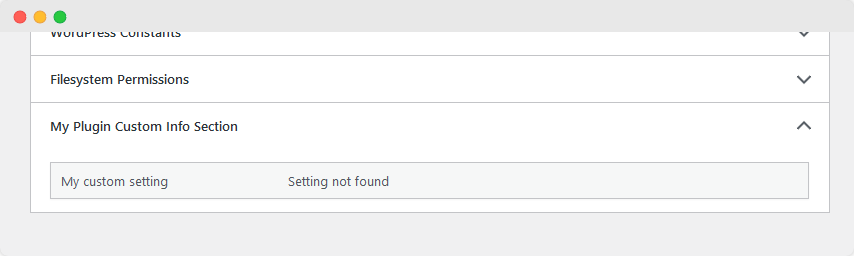
<p>This should add your custom section to the info tab:</p>

<p><img src="https://koenreus.com/assets/images/screely-1677508017153.png" alt="screenshot" /></p>

<h2 id="conclusion">Conclusion</h2>
<p>And that’s how you add custom tests and debug info to the WordPress Site Health page!</p>

<p>You can find a fully working example plugin on my <a href="https://github.com/koen12344/health-screen-customization-example">GitHub page</a>.</p>

<p>I’m curious to see how you’ll implement this into your plugins! If more developers implemented this we could all point 
users into the same direction for getting debugging info.</p>

<p>Having said that, we should aim to keep it <strong>useful</strong> and not clutter it up with commercial messages or useless tests/debug info.</p>

<p>Don’t forget to share this if you found this useful, and <a href="https://twitter.com/KoenReus">follow me on Twitter</a> for more 
guides like this!</p>]]></content><author><name>Koen Reus</name><email>koen+website@koenreus.com</email></author><category term="wordpress" /><category term="wordpress" /><category term="php" /><summary type="html"><![CDATA[WordPress 5.2 gave us the Site Health screen, a convenient way for users to check on the vitals of their website. It performs some tests and also gives the option to copy all debug data to the clipboard for easy sharing.]]></summary></entry></feed>